Subjects
Note
A subject is made of lessons. Each lesson is one meeting of the subject.
Every subject must have at least one teacher or at least one class. All selected classes will attend each of the subject’s lessons together (at the same time).
- If you have a subject “English” taught to both 6th and 7th grade separately, you should create two subjects: one for 6th Grade English and one for 7th Grade English.
- If you have a combined subject—e.g., PE—where 6A and 6B take PE together, you should select both 6A and 6B for that one subject.
- Selecting multiple teachers by default means all selected teachers will teach the subject simultaneously. This is useful for co-teaching, teaching assistants, or scheduling shared events like staff meetings (see A Subject with No Class).
- To have the scheduler pick from the listed teachers instead, lower Teachers needed on the subject card (see Allowing ScheduLearn to Choose Teachers and Classrooms).
Adding a Subject
Click the Add Subject button on the toolbar of the Subjects Page.
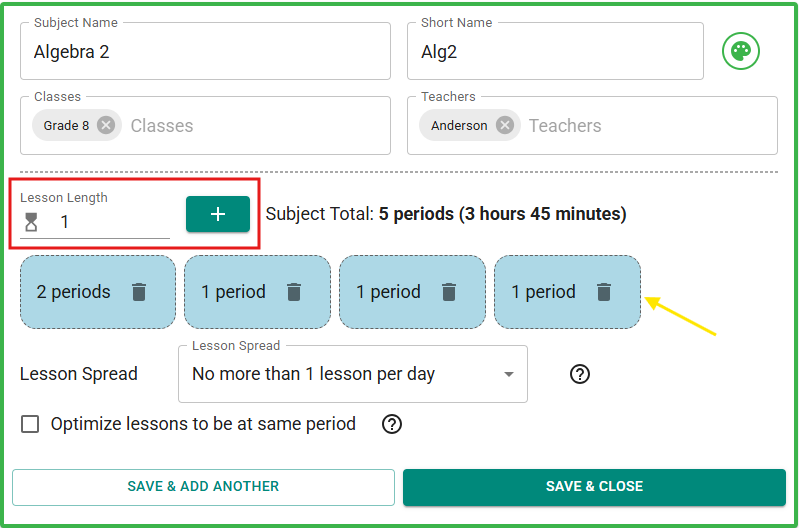 Adding a Subject.
| Field | Description |
|---|---|
| Subject Name | The name of the subject (e.g., English, Math 9, Homeroom). |
| Short Name | An abbreviation of up to 4 characters, used in compact schedule views. ScheduLearn fills it in from the name. Changing the name replaces it, so set a custom short name last. |
| Classes | Select all Classes that take this Subject together. You must create a separate subject for each class that takes it if the classes do not take the subject together. |
| Teachers | Choose the teacher(s) who teach this subject. You may also leave this field blank and come back later (see A Subject with No Teacher). |
| Classrooms | Only shown when the Classrooms feature is on. |
| Schedule Structure | Only shown if you have more than one schedule structure, and the subject has teachers but no classes. Choose the structure its lessons belong to (see Choosing a Schedule Structure). |
Shortcut
When selecting Classes or Teachers, typing a name that doesn't exist will give you the option to create it automatically, without leaving the page.
Adding Lessons
A new Subject starts with no lessons. The Lessons section asks how often it meets, and suggests the patterns your school uses most (below). Click one to add those lessons. To pick lengths one at a time, click Something else….
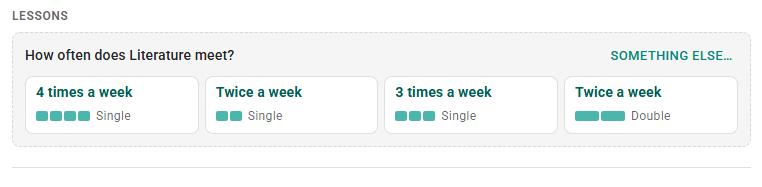 Choosing how often a new Subject meets.
Lessons are grouped by length. 4 × Single means four single-period lessons. Each block represents a different lesson. You can use + and − to add or remove a lesson of that length, or click the number to set it directly. To add a lesson of another length, click Double, Triple or Other length… (above).
Time-based schedules
In a time-based schedule, lengths are given in minutes rather than periods. The suggested lengths are common class durations, rounded to whole time slots.
If your school has schedules of both kinds, a new Subject's Lessons section waits until you choose its classes, since they decide which schedule its lessons are in.
Lessons That Differ from the Subject
A lesson takes its name, teachers and classrooms from its Subject. When a lesson has its own, or has constraints of its own, its block shows an icon for each difference. Click the block to see them (below). Each difference has a button that puts it back to match the subject, and Match the subject resets them all. You can also Rename or Remove lesson here.
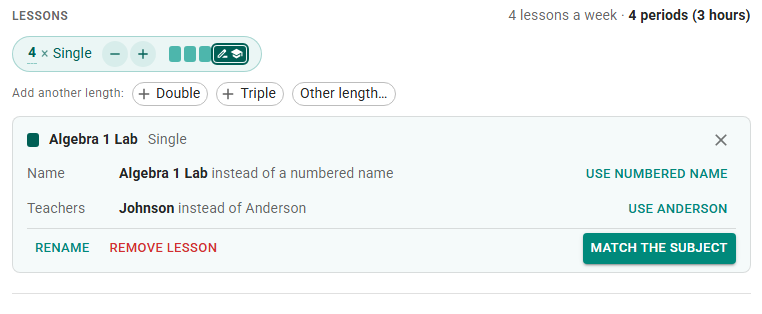 A lesson with its own name and teacher.
While any lesson differs from its Subject, a dot marks View lessons on the card and the lesson count on the Subject's tile.
A pin with a number shows how many lessons of a length are pinned. Hover over it to see which.
The − button removes the lesson that's safest to lose. It prefers one that matches the Subject, isn't pinned and isn't on the schedule.
Lesson Spread
The Lesson Spread controls how a subject's lessons are spread across the cycle. Expand Scheduling Rules on the subject card to set it. Common options:
| Option | Meaning |
|---|---|
| No more than 1 lesson per day (default) | Each lesson must be on a different day. |
| 1 day can have 2 lessons | Allows one day to contain two lessons. |
| No more than 2 lessons per day | Every day may contain up to two lessons. |
| At least 1 lesson on every day | Ensures the subject appears every day when there are more lessons than cycle days. |
| None | No distribution preference — the scheduler may place lessons anywhere. |
When a subject has more lessons than there are days, ScheduLearn switches No more than 1 lesson per day to At least 1 lesson on every day. It switches back when the subject has fewer.
If the Lesson Spread can't be met, generating the schedule reports a scheduling conflict.
Optimize Lessons to Be at Same Period
This option, also in Scheduling Rules, can be useful if you want your schedule to be largely consistent day to day. If you enable this for a subject, the scheduler will do its best to place each lesson at the same period every day.
Allowing ScheduLearn to Choose Teachers and Classrooms
If more than one teacher could teach a subject, you can let ScheduLearn choose among them.
- Add every possible teacher to the Teachers selector.
- Lower Teachers needed to the number of teachers the subject actually needs. ScheduLearn picks that many from the list.
Once Teachers needed is lower than the number of teachers listed, each teacher shows a pin icon. Click it to change how ScheduLearn treats that teacher:
- Preferred (star) — ScheduLearn chooses this teacher when it can. Click the pin once.
- Always teaches (filled pin) — the teacher is always assigned and counts toward Teachers needed. Click the star. Click the pin again to make the teacher optional.
In the screenshot below, Brown always teaches Science, and ScheduLearn picks one more teacher from Anderson, Dean and Wilson, preferring Anderson.
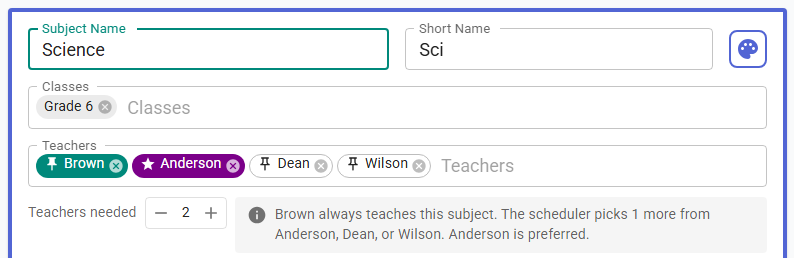 A subject with four possible teachers, two needed, one who always teaches and one preferred.
Classrooms
When the Classrooms feature is on, a subject's Classrooms field works similarly to the Teachers field. A new subject starts with every classroom listed and Classrooms needed set to 1, so ScheduLearn picks one classroom for it. You can adjust the classrooms list in the same way to choose preferred classrooms, or simply select a single classroom to ensure it is scheduled in a specific room.
Keeping the Same Teachers and Classroom for Every Lesson
By default, every lesson of a subject gets the same teachers and the same classroom. To let lessons differ, expand Scheduling Rules on the subject card and uncheck All lessons must be taught by the same teachers or All lessons must be in the same classroom.
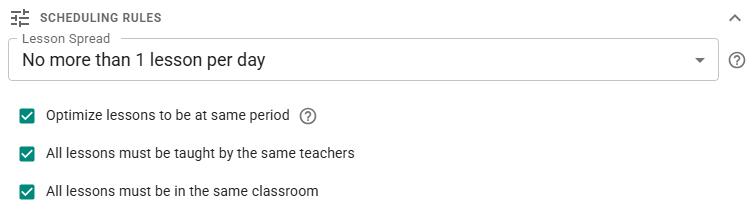 The Scheduling Rules section with both options checked.
A Subject with No Teacher
You don't have to choose a teacher for a subject. This is useful if the teacher isn't assigned yet, or for activities without a teacher, such as Lunch. The subject's lessons show No teacher on the Schedule Page.
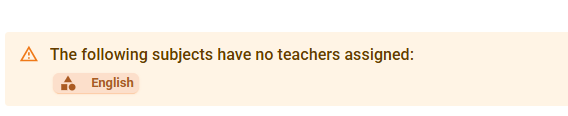 The banner for subjects with no teacher.
A Subject with No Class
If you need something to appear only in a teacher schedule, you can create a subject without assigning it to any class. For a weekly meeting of three teachers, create a subject called “Teacher Meeting,” leave Classes empty, and add the three teachers. Teachers needed rises to 3 as you add them, so all three meet at the same time.
The message at the bottom of the card confirms that the subject has no classes and will be scheduled only for its teachers (below).
Choosing a Schedule Structure
With more than one schedule structure, a subject with teachers but no classes shows a Schedule Structure field. Pick the structure its lessons belong to. A subject with classes doesn't need this, because each class belongs to one structure. For example, a meeting of Lower School math teachers goes in the Lower School structure.
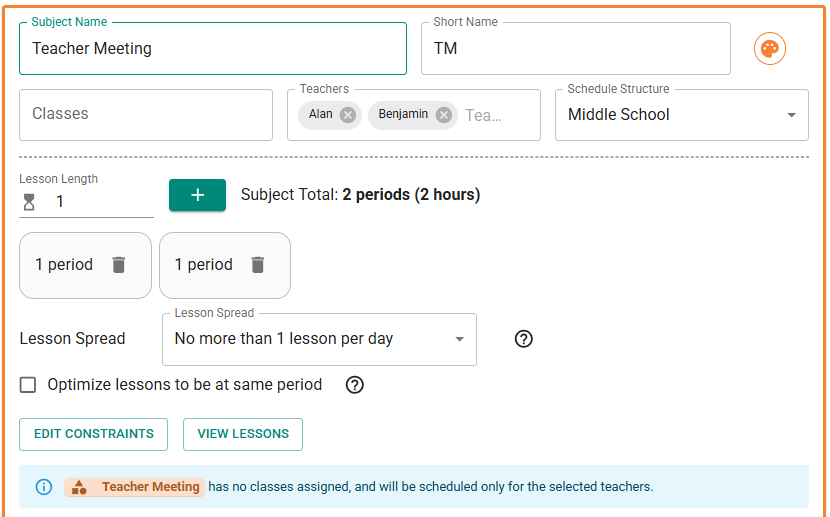 A subject used to schedule a teacher meeting.
Constraints
When you add a constraint to a subject, it applies to each of its lessons. A subject has two kinds of constraints: its calendar, and the constraints you add in the constraint editor.
Subject Calendar Constraints
Like a teacher's calendar, a subject's calendar blocks times when its lessons can't be scheduled. The On day, Not on day, Before period, After period, At period and Not at period constraints often do the same job. Use the calendar when you need cell-by-cell control.
To edit a subject's calendar:
- Click Edit Calendar at the bottom of the subject card.
- Click a cell to switch it between Available, Not preferred and Blocked. Click a day name or a period to change the whole column or row, or click and drag to select a range of cells.
- Click Done, then Save on the subject card.
ScheduLearn never places a lesson of the subject in a Blocked cell, and avoids Not preferred cells when it can. In the screenshot below, Science can never be on Monday and should avoid first period.
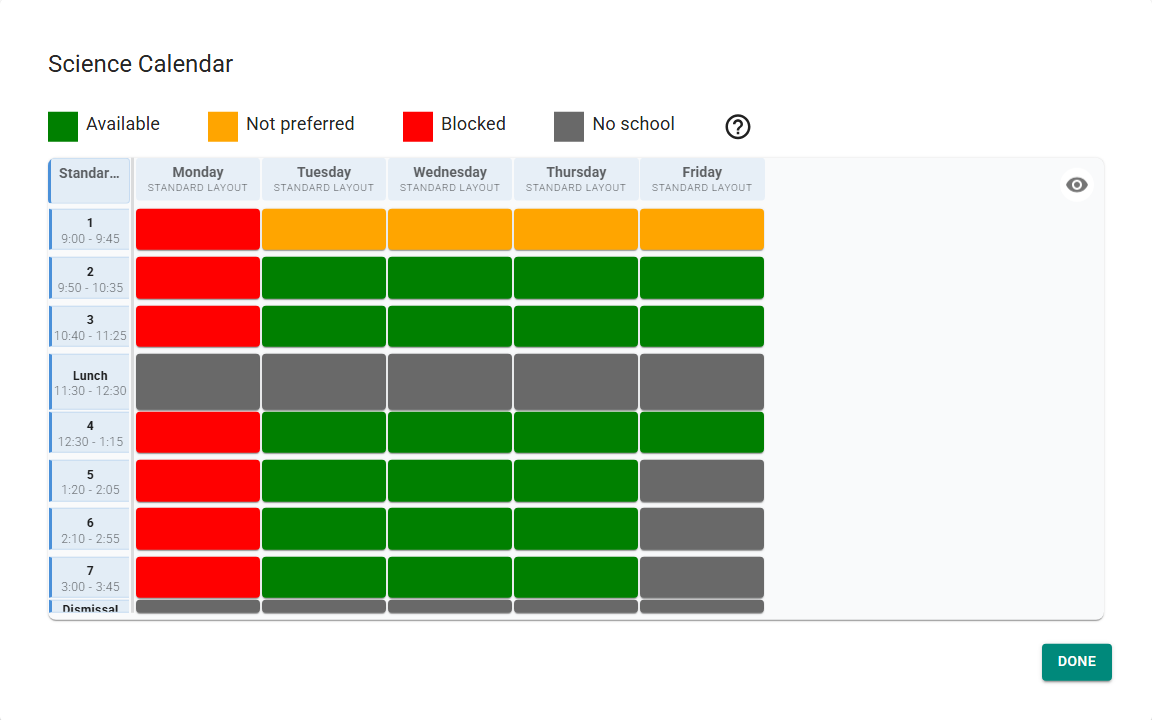 A subject calendar with Monday blocked and first period not preferred.
If only one lesson of the subject needs to be at a particular time, add the constraint to that lesson instead (see Modifying Subject Lessons).
Warning
We recommend using only the on day/at period constraints or the calendar constraints. Using both may cause confusion and may cause scheduling conflicts.
If the calendar and the subject's day or period constraints can't all be met, the subject card shows a Conflicting constraints warning. It is red when the clash causes a scheduling conflict, and yellow when only preferences are involved.
Adding Constraints in the Constraint Editor
- Click Edit constraints at the bottom of the subject card to open the Subject Constraint Editor.
- Choose a Constraint Type. The types are grouped into Day Constraints, Period Constraints and Subject Constraints. The less common ones are hidden; click Show 7 More at the bottom of the list to see them.
- Fill in the fields for that type, such as the period or the other subject.
- Click + to add the constraint to the list.
- Click Save.
With constraint weights on, each constraint has a slider that sets how strongly it applies.
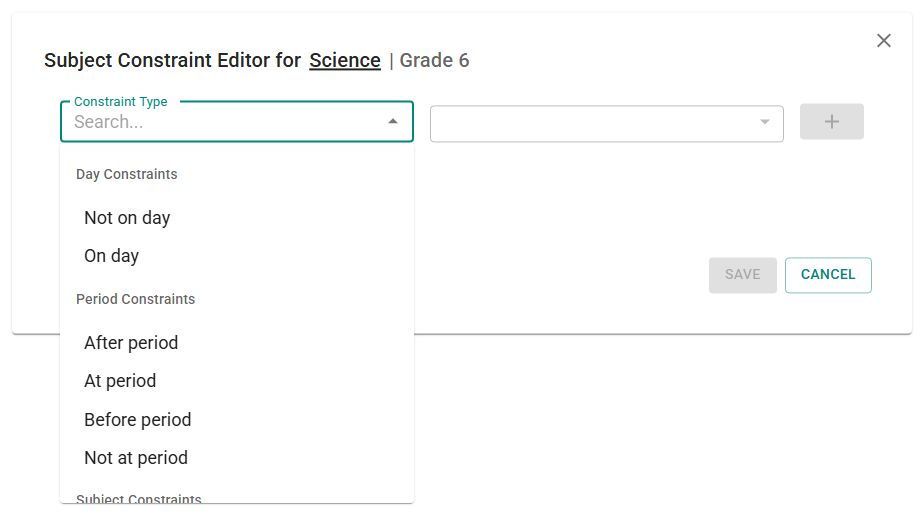 The Constraint Type list in the Subject Constraint Editor.
For details on each subject constraint, see the Constraints Page guide.
Subject Constraints
These constraints relate one subject to another:
-
Same time as — Allows, and requires, the two subjects’ lessons to occur at the same time. Make sure the subjects are taught by different teachers otherwise this constraint will cause a scheduling conflict.
-
Same time as one of — Each lesson of A is at the same time as a lesson of one of the subjects you pick. Turn on Pair with only one of the selected subjects to keep all of A's lessons with a single one of them. This constraint is only on subjects, not on single lessons.
-
Not the same time as — No lesson of A may overlap any lesson of B.
-
Can be same time as — Allows (but does not require) lessons of Subject A to occur at the same time as Subject B.
-
Same day as — The subject with fewer lessons will only be scheduled on days when the other subject has lessons.
Example
If A has 3 lessons and B has 4 lessons, and both have the lesson spread enforcing lessons to be on different days, then every day A has a lesson, B will also have a lesson.
-
Not the same day as — No lesson of A may occur on the same day as any lesson of B.
Warning
This causes a scheduling conflict when A and B together have more lessons than there are days, unless their lesson spread allows two lessons on one day.
-
Same period as — The lessons will be placed in the same period on different days.
Example
Art and Music each meet once per week; adding this constraint might put Art on Monday Period 3 and Music on Tuesday Period 3.
This is not the same as Same time as.
-
Not the same period as — No lesson of A may occur in the same period as any lesson of B. Example: all lessons of A might be Period 1, and all lessons of B Period 2.
- After — If A and B occur on the same day, A will be scheduled after B.
- Before — If A and B occur on the same day, A will be scheduled before B.
Note
Same time as is transitive. For example, if A same time as B and B same time as C, then A, B, and C will all be scheduled at the same time. You do not need to add A same time as C; it is implied.
Modifying Subject Lessons
Sometimes you need to modify a specific lesson rather than the entire subject—for example, if a double period must occur on Monday. In these cases, you should edit the lesson directly.
Note
The Lessons section of the Subject card shows which lessons differ from the subject, and lets you put them back (see Lessons That Differ from the Subject). To make a lesson differ, edit it in the lesson list.
To modify a lesson:
- Open the Subject card.
- Click View lessons at the bottom of the card. Or, in Grid View, click the ⋮ at the top right of the card and choose View Lessons (below).
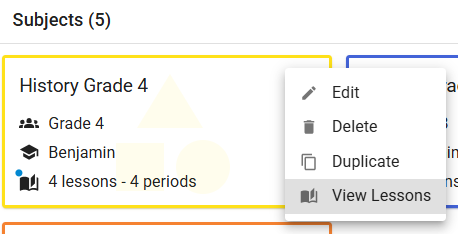 Accessing the lesson list from Grid View.
You will then see all lessons for that subject (below). On the toolbar, you can click Back to return to the subject.
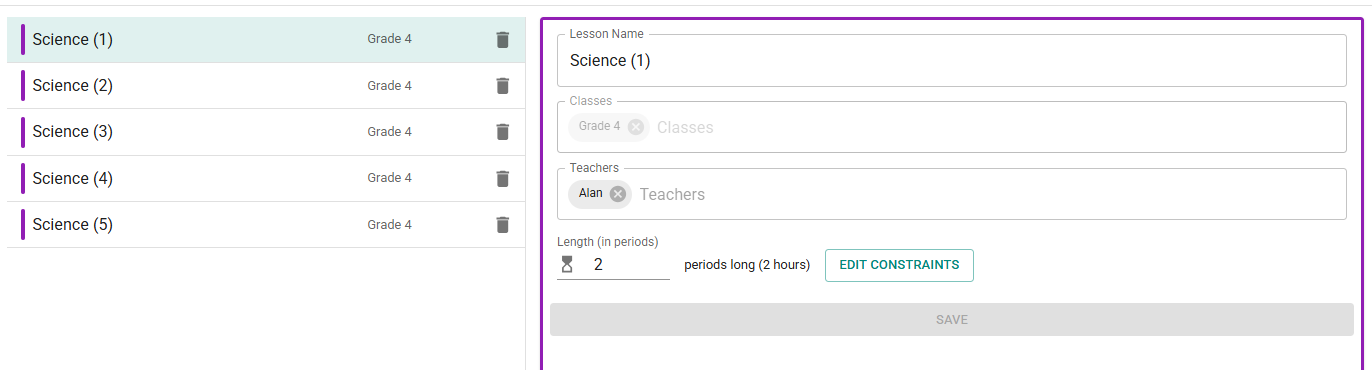 Viewing and editing individual lessons.
You may modify any property of a lesson except its class assignment. You can also give a lesson a custom name (e.g., “Science Lab”), which will appear on the Schedule Page.
A blue dot on View lessons means at least one lesson has been edited on its own. When you save a change to the subject's teachers, classrooms or name, and some lessons have their own, ScheduLearn asks Update overridden lessons? Click Apply to all to give those lessons the subject's new values, or Keep custom to leave them as they are.
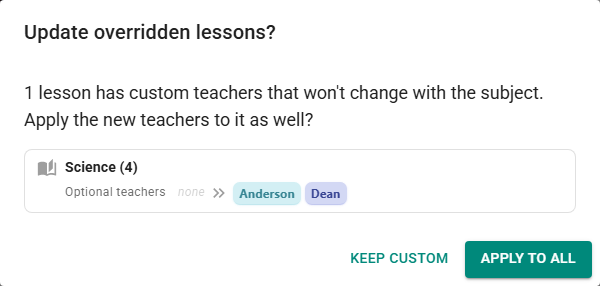 The prompt listing a lesson whose teachers were set on their own.
Note
Lesson numbering does not affect how lessons are placed during schedule generation.
To add a constraint to one lesson, click Edit constraints on its card. Use these sparingly. If you add them often, a subject-level constraint is usually simpler.