Schedule
The Schedule Page is where you'll spend most of the time. Here you can generate, modify, and view your schedules.
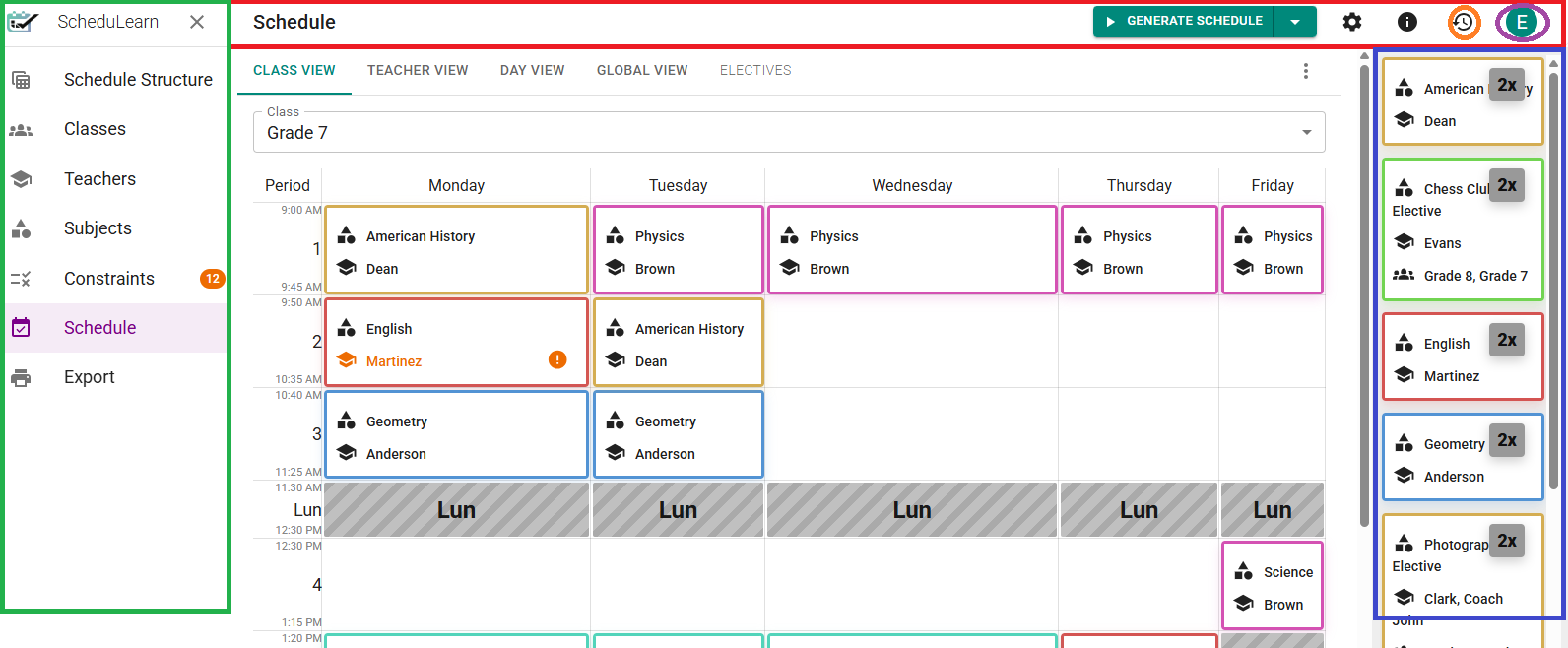 Overview of the Schedule Page layout.
- Toolbar — the bar across the top (outlined in red above). It holds the Validate Schedule / Generate Schedule button, the gear icon for Solver Settings, and the pin icon for Pinning.
- Staging Area — the panel on the right (outlined in blue above). Your unplaced lessons for the current view show up here. When ScheduLearn can choose a subject's teachers or classrooms from a pool, you can also choose them here.
Your lessons will start in the staging area. Lessons that share a subject, length, teachers and classrooms are stacked, with a badge showing how many are unplaced. To take a lesson off the schedule, drag it back onto the staging area.
The staging area appears on the Class, Teacher, Classroom and Student views. It shows only the lessons of the class, teacher, classroom or student you're viewing.
ScheduLearn provides different Views for your schedules.
- Class View — a view for each class.
- Teacher View — a particular teacher's schedule.
- Classroom View — your classroom schedules (only when the Classrooms feature is on).
- Student View — a particular student's schedule (only when Students is on).
- Day View — everything that happens on a specific day. Use Filter classes to narrow it to some of your classes (see Choosing what the filter shows).
- Global View — a comprehensive view of your entire schedule.
If your school has more than one schedule structure, the All structures dropdown (outlined in red below) focuses a view on one structure available in all but the Classes view.
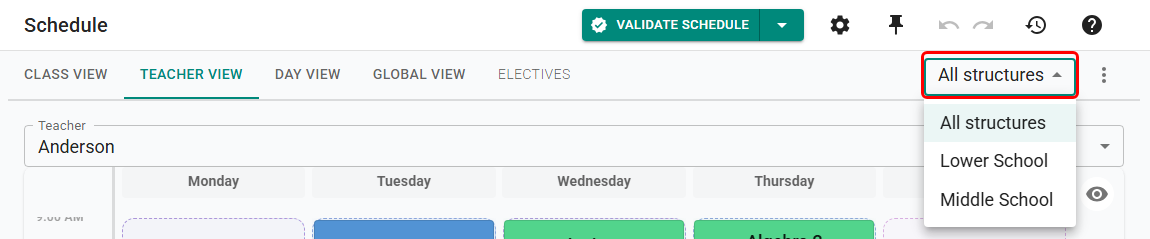 Focusing the Teacher View on one schedule structure.
Generating and Validating the Schedule
Click the arrow to its right to switch between Validate Schedule and Generate Schedule.
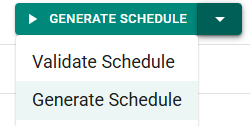 Scheduler drop down button.
Validate
Validating builds a schedule for each class and teacher on its own. It often finds problems faster than generating.
Validating also checks that each class, teacher and classroom has enough time for all its lessons. If one doesn't, a Validation detected a problem banner names it (below). If every check passes, you see Validation passed.
 Grade 6 has more periods of lessons than it has time for.
Generate
Generating also finds scheduling conflicts, including ones between classes or teachers that validation can't see. It skips validation's extra checks.
Generating is often quick. In many cases 1–3 minutes is enough. If it keeps timing out even with more time, there is likely a scheduling conflict, or a data problem ScheduLearn can't pinpoint.
Don't worry too much about meeting the soft constraints as you're still entering data and constraints. Just make sure a full schedule can be built. Then, you can set the solver timeout to 30 minutes or even longer and let it spend a lot of time optimizing for the soft/yellow constraints.
Watching the Solve and Stopping Early
While ScheduLearn is generating, a progress banner keeps you updated on how the solve is going:
- how close to optimal the best schedule found so far is
- how many lessons have been placed, when you're using Place as many as possible
- how many soft constraints are met, for example "12/15 soft constraints met"
- how long it has been running, out of the solver timeout, for example "Running 02:30 of up to 10:00"
As soon as ScheduLearn has a working schedule, you don't have to wait for the timeout to finish. The Cancel button turns into Stop & Keep Schedule - click it to stop the solver and keep the best schedule it has found so far. If you keep waiting, ScheduLearn continues looking for a better schedule until it finds the optimal one or runs out of time.
 Stop solving and keep the schedule found so far.
When the solve finishes, a short quality summary tells you how good the result is - how close to optimal it is, how many lessons were placed, how many soft constraints were met, and how long it ran. If ScheduLearn proved the schedule is optimal it will say so; otherwise you can turn on Search for optimal schedule or raise the solver timeout to try for a better one.
 The results banner after a solve that proved its schedule optimal.
Click View schedule in the The results are in! banner to load the new schedule. It replaces the schedule on the page.
Tip
For long solves you don't have to sit and watch. If you switch to another browser tab while ScheduLearn is generating, it notifies you when your schedule is ready.
Viewing Problems from the Schedule Page
ScheduLearn marks problems on lessons as you work. Hover over a marked lesson to see what's wrong.
- Double bookings (red) — a teacher, class or classroom has two lessons at once (below).
- Unmet requirements (red) — a hard constraint isn't met, such as a teacher teaching at a time marked unavailable (below).
- Unmet preferences (yellow) — a soft constraint isn't met (below).
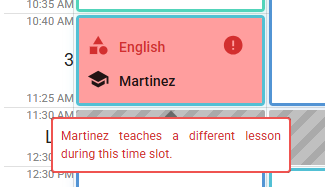 A double-booked teacher.
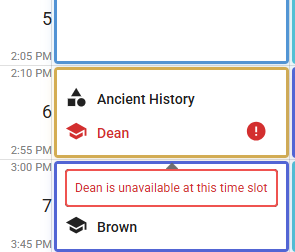 An unmet requirement.
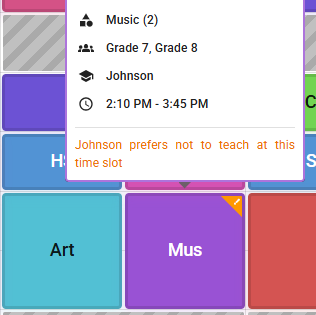 An unmet preference, on a small card.
The Constraints Page lists every unmet constraint (see Unmet Constraints).
Note
These are problems in the schedule as it stands. When validating or generating can't build a schedule at all, ScheduLearn shows a Couldn't build a schedule banner instead, because there is a scheduling conflict (see Scheduling Conflicts).
Drag & Drop
You can move lessons around by dragging and dropping them in every view except for the global view and any custom views. In the Day View, a lesson can only move within its own column.
Lessons at the same time in a cell move together. Dropping a lesson on an occupied cell swaps the two. Hold Ctrl while dragging to move a single lesson, or to place it without swapping.
Pinning
You can pin lessons in place so they won't move when you generate the schedule. To pin a lesson, turn on pinning mode by toggling the pin icon on the toolbar (circled in red below).
 Turn on pinning mode.
Once activated, a pin icon appears on each lesson which you can click to pin that lesson. Click Pin All (outlined in green above) to pin every lesson in the current view (Unpin All removes them). Once you are done pinning, deactivate the pinning mode by clicking the same pin button on the toolbar.
Tip
You can also pin a lesson, or every lesson of a subject, from Quick Edit without turning on pinning mode.
A pinned lesson can't be dragged until it's unpinned. Moving it to the staging area from Quick Edit will unpin it.
Warning
Pins are constraints, so they can cause a scheduling conflict like any other constraint. With Place as many as possible on, pinned lessons stay put, and ScheduLearn places as many other lessons as it can around them.
Quick Edit
Click any lesson on the schedule, including lessons in the staging area, to open Quick Edit. It lets you change the lesson or its subject without leaving the Schedule Page. A stacked card in the staging area opens Whole subject only. You can edit a single lesson once it's placed.
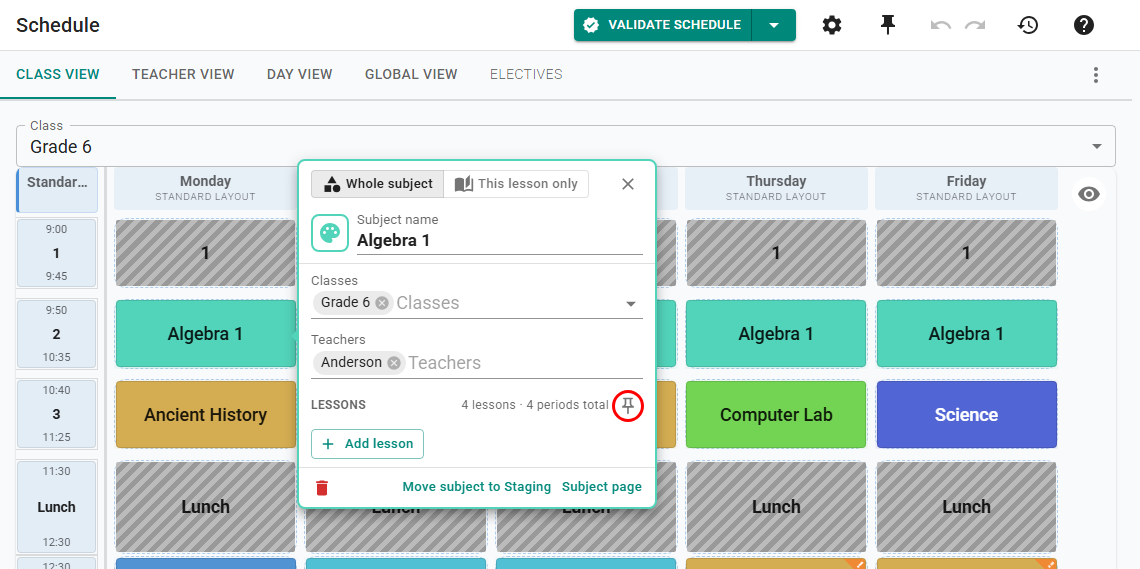 Quick Edit open beside the lesson being edited.
At the top, choose what to change:
Whole subject allows you to
- Modify the subject's name, color, Classes, Teachers or Classrooms.
- Add a lesson by clicking the Add lesson button. The new lesson goes to the staging area.
- Pin each lesson of the subject in place by clicking the pin icon (circled in red above).
- From the footer, you can delete the subject, move its lessons to the staging area (Move subject to Staging), or open it on the Subjects page (Subject page).
This lesson only allows you to
- Rename the lesson. The reset icon next to the name restores its default name.
- To give the lesson its own Teachers or Classrooms, click the link icon next to them. This turns off the subject's All lessons must be taught by the same teachers (or All lessons must be in the same classroom), so each of its lessons can have its own. Reset to subject brings this lesson back in line with the subject.
- Change the lesson's length and, on a time-based schedule, when it starts.
- Pin the lesson in place by clicking its pin icon.
- From the footer, you can delete the lesson, move it to the staging area (Move lesson to Staging), or open it on the Subjects page (Lesson page). Deleting a subject's only lesson deletes the subject.
Changes apply as you make them; you can always undo and redo them. If a change would double-book a teacher, class or classroom, Quick Edit warns you and lets you choose Move to Staging or Apply anyway.
Choosing Teachers and Classrooms
When ScheduLearn chooses a subject's teachers from a pool, you can make the choice yourself from the Schedule Page. Each choice shows a count such as 1/1. The first number is how many teachers are chosen. The second is how many are needed. After a schedule is generated, the teachers ScheduLearn picked are already chosen. Classrooms work the same way.
In the Staging Area
The Teachers and Classrooms tabs (icons) at the top of the staging area (outlined in red below) list every choice in the current view. The badge on a tab counts the choices that still need a teacher or classroom, and Show Invalid Only hides the rest. Expand a choice and check the teachers you want.
Normally a subject has one choice that covers all of its lessons. If All lessons must be taught by the same teachers is unchecked for the subject, each lesson gets its own choice, so different lessons can have different teachers. All lessons must be in the same classroom works the same way for classrooms.
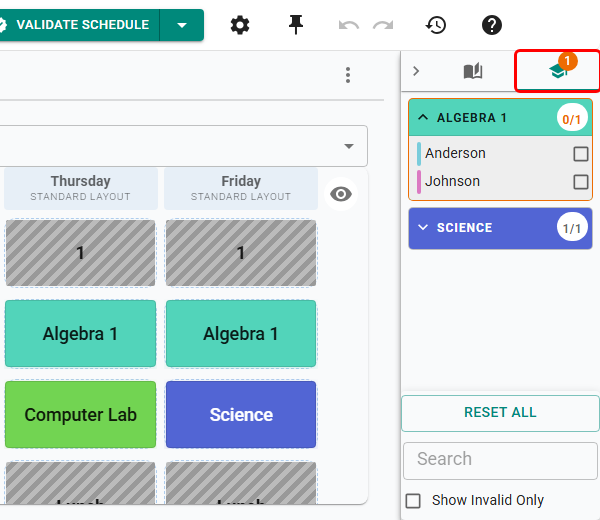 Algebra 1 still needs a teacher; Science has one.
On the Teachers tab, Reset All clears every choice in the view, except for teachers who always teach the subject. In a Teacher View, Add to All and Remove from All add that teacher to every choice in the view, or remove them. In a Classroom View, Assign to All and Remove from All do the same for that classroom.
In Quick Edit
Quick Edit shows the pool under Teachers. Click a teacher to choose them, or click the pencil icon to change who is in the pool.
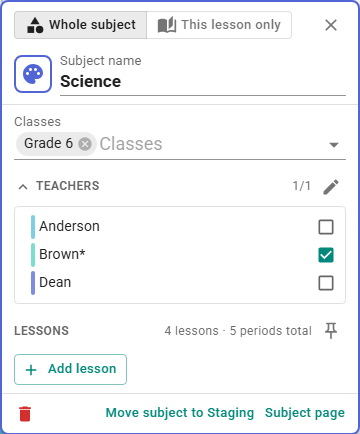 Choosing one of three teachers in Quick Edit.
If All lessons must be taught by the same teachers is on for the subject, you choose in Whole subject, and every lesson gets the same teachers. If it's off, you choose for each lesson in This lesson only.
Custom Views
You can also create your own custom views. Click the ⋮ to the right of the view selector and choose Add custom view (green arrow below).
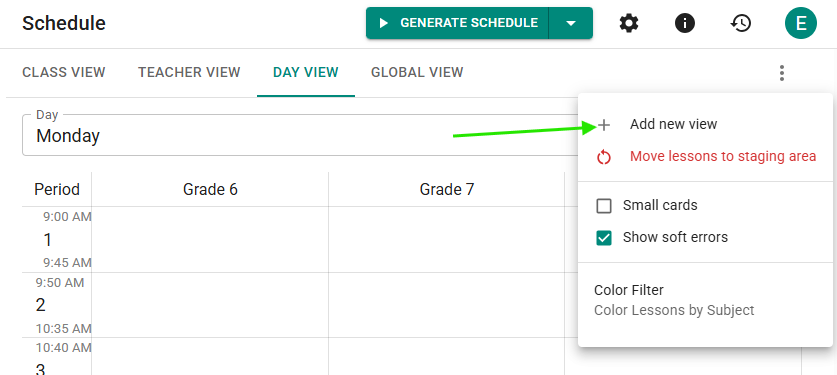 Add a custom view.
Give the view a meaningful View Name, then choose the Classes, Teachers and Subjects you want to see together (and Classrooms or Students, when those features are on). Each selected item appears as its own column or row.
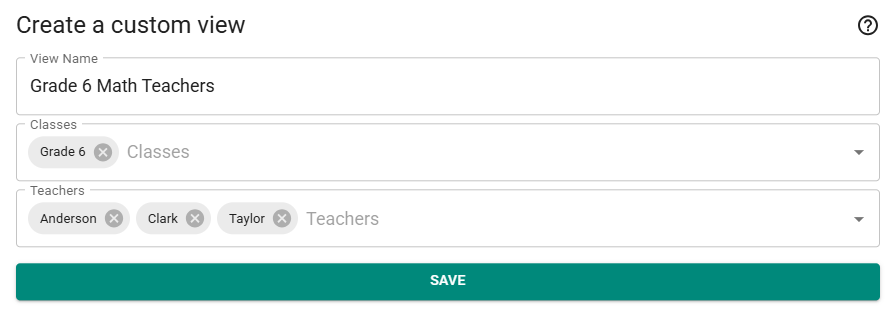 Creating a custom view.
Tip
You can create a custom view with all of your teachers to quickly see which teachers are available when.
Schedule View Options
Click the ⋮ to the right of the view selector to open the menu (above).
- Add custom view — add a custom view.
- Move lessons to staging area — reset the view you are in. All lessons in this view will be moved to the staging area. If any of them are pinned, you'll be asked whether to leave those scheduled or unpin and move them too. If you want to reset the entire schedule do this from the global view.
-
Small cards — a more compact view of the schedule, on by default. Global View and custom views always use small cards. Hover over any lesson to see its full details. To change the size of the grid, use the eye icon in its corner.
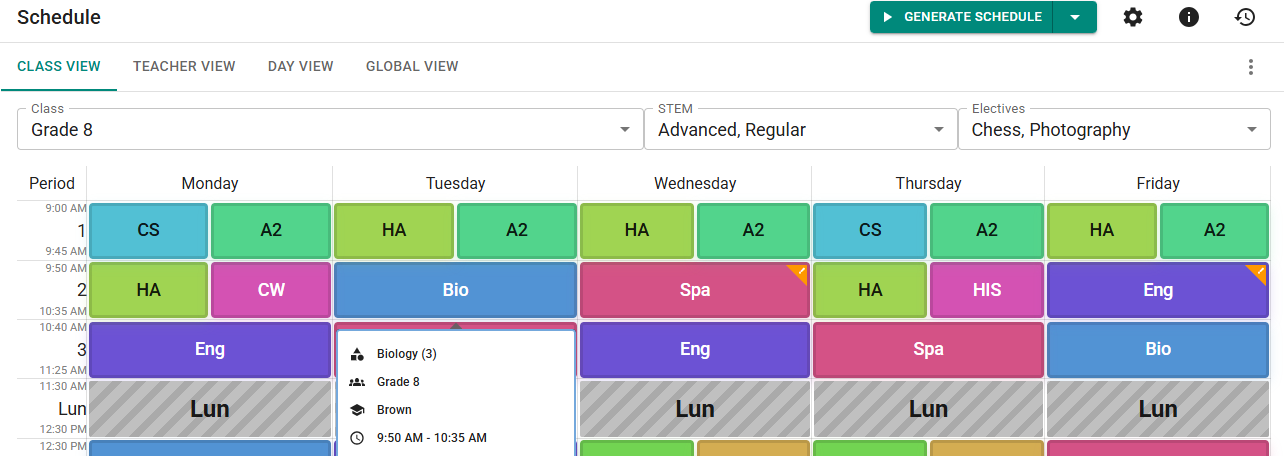 Small card view.
 -
Show soft errors — on by default. Shows unmet soft constraints on the Schedule Page.
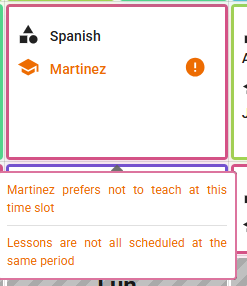 A lesson's unmet soft constraints, shown when Show soft errors is on.
 -
Use short name — show each subject's short name on its lessons in place of the full name.
- Color Filter — color the lessons by their subject, teacher or class, or by classroom when the Classrooms feature is on.
- Edit view / Delete this view — change or remove a custom view (custom views only).
On the Global View and on custom views, the Column Layout / Row Layout selector (green arrow below) lets you switch between a column layout with each item shown in its own column (default), and a row layout where each item is in its own row.
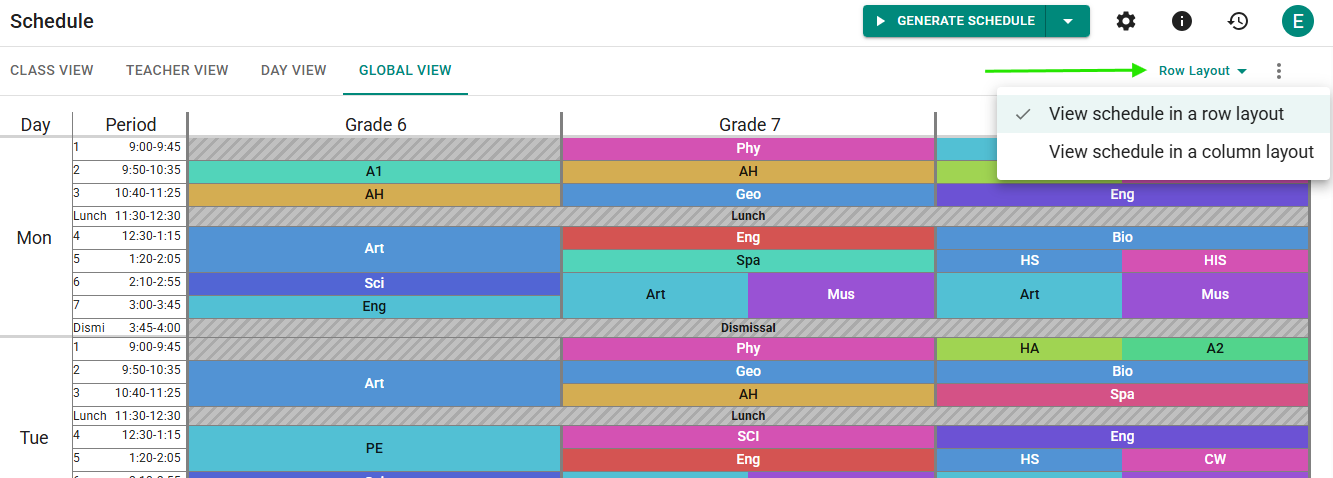 The Global View in a row layout.
Solver Settings
To open the solver settings, click the gear icon on the toolbar. They also include Constraint Weights, covered in Constraint Weights.
Solver Configuration
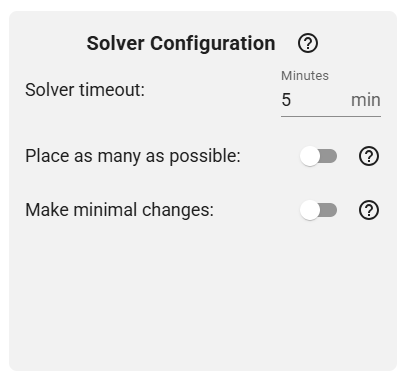 Solver Configuration Settings.
- Solver timeout — the longest ScheduLearn will spend building the schedule, from 1 to 60 minutes. It stops sooner if it proves it has found the best possible schedule, or that no schedule is possible.
Note
Generating also includes a short setup step that doesn't count toward the timeout. When validating, the timeout applies to each class and teacher check separately, not to the validation as a whole.
-
Search for optimal schedule — on by default. ScheduLearn keeps searching until it proves it has the best schedule, or until the timeout. Turn it off to get a result sooner. ScheduLearn then stops once a schedule is very close to optimal or stops improving.
-
Place as many as possible — ScheduLearn places as many lessons as it can and leaves the rest in the staging area, instead of reporting a scheduling conflict. This feature can be helpful to find which lessons can't fit.
-
Make minimal changes — ScheduLearn keeps as many lessons as possible where they are now. Use it near the end, or after the school year starts. It adds a soft constraint for each lesson, so other soft constraints may be met less often.
Build A Partial Schedule
While building the full schedule is the eventual goal, it can sometimes be very useful to build just part of the schedule. In the Partial Schedule section, switch from Whole schedule to Only selected, then pick the classes, teachers, subjects or schedule structures you want (and classrooms, when that feature is on). Structures only shows with two or more schedule structures.
A lesson is included if it matches any of your selections. For example, selecting class 8B and Mr. Cohen includes every 8B lesson and every lesson Mr. Cohen teaches. A lesson that matches none of them is left out, even if you selected every item in one of the lists: selecting every class still leaves out lessons that have no class, such as a teacher's duty.
Below the lists, ScheduLearn shows how many of the school's lessons are included, so you can see exactly how much the run will cover. Switching back to Whole schedule keeps your selections for next time but ignores them.
Respect pinned lessons elsewhere is on by default. Pinned lessons outside your selection stay in place, and the solver works around the teachers and classrooms they use.
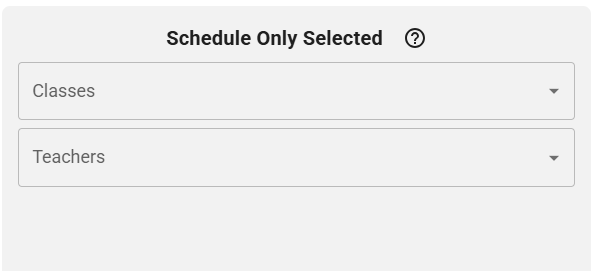 Partial Schedule.
Whenever fewer than all lessons are included, the generate button becomes Generate Partial Schedule (or Validate Partial Schedule) so you know the run won't cover the entire schedule.
 The Generate Partial Schedule button.
Other Settings
Under Other Settings in the Solver Settings, switch on Classrooms Enabled to use Classrooms, or Students Enabled to use Students.