Students
Most schools don't need to add students. ScheduLearn schedules classes, and students who split up for some subjects are handled with class divisions.
There are two ways to use students:
- Student schedules. ScheduLearn schedules your classes as usual, and you add students to see or print each student's own schedule. A student's schedule has their class's lessons and only their own tracks, so it's most useful when a class is split into tracks. Any school can turn this on.
- Individual scheduling. ScheduLearn schedules each student instead of each class, based on the subjects each student chooses. This isn't available by default. The ScheduLearn team sets it up for schools that need it (see Individual Scheduling).
Turning On Students
On the Schedule page, click the gear icon to open Solver Settings. Under Other Settings, turn on Students Enabled (below).
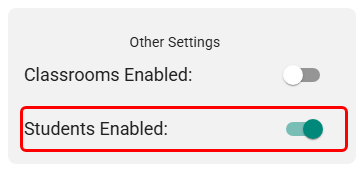 Students Enabled in Solver Settings.
Students then appears in the sidebar.
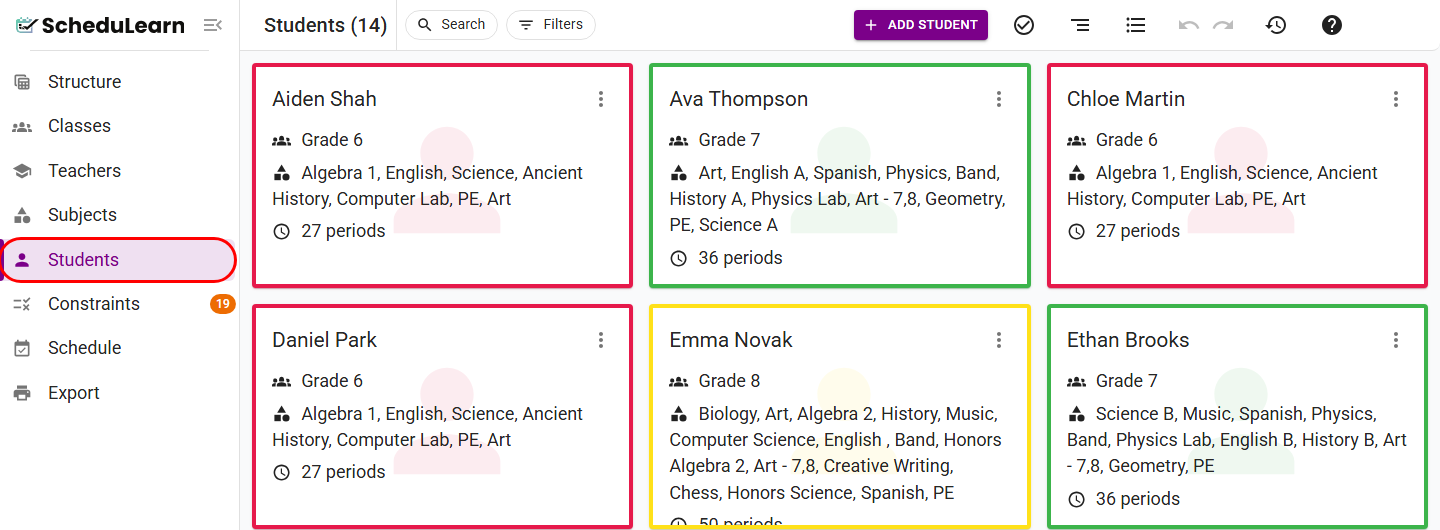 The Students page, with its sidebar entry circled.
Adding a Student
Click Add student at the top of the Students page. The student card (below) has:
- First Name and Last Name
- Class — the class the student belongs to. Changing it replaces the student's subjects with the new class's, and clears their tracks and subject choices.
- Required Subjects — the subjects the student takes. It's filled in from the class and the tracks you pick, and you can add or remove subjects yourself.
- Divisions — a track for each of the class's divisions.
The card shows a note if the student is not assigned a track in one of the class's divisions, or takes a subject that isn't part of their class.
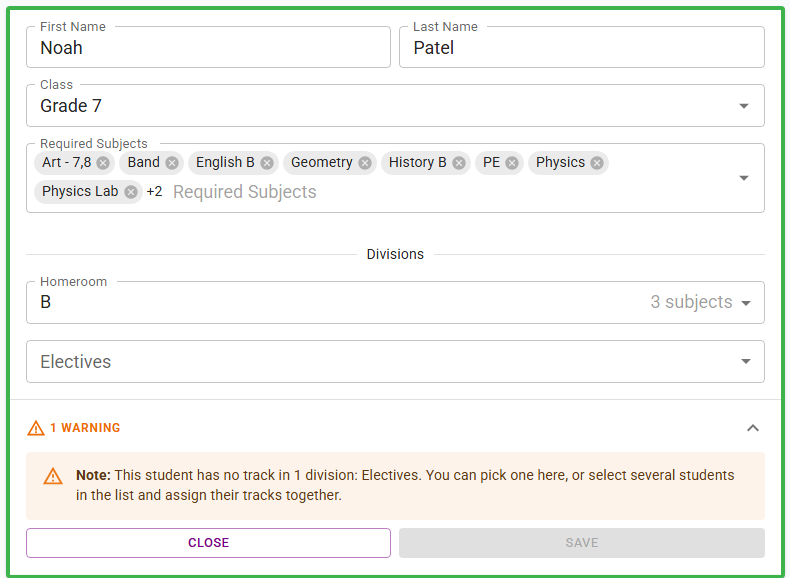 A student in track B of the Homeroom division, with no Electives track yet.
Tip
To give many students their tracks at once, turn on Select Mode, select the students and click Edit. Pick a track for each division under Divisions.
To work through one class at a time, filter the page by class with Filters, or group it by class with Group by.
Student Schedules
- Schedule page — Student View shows one student's schedule (below). You can also add students to a custom view.
- Export page — choose Individual and pick students under Student Schedules. A button for each class adds or removes all of its students (see What to Export).
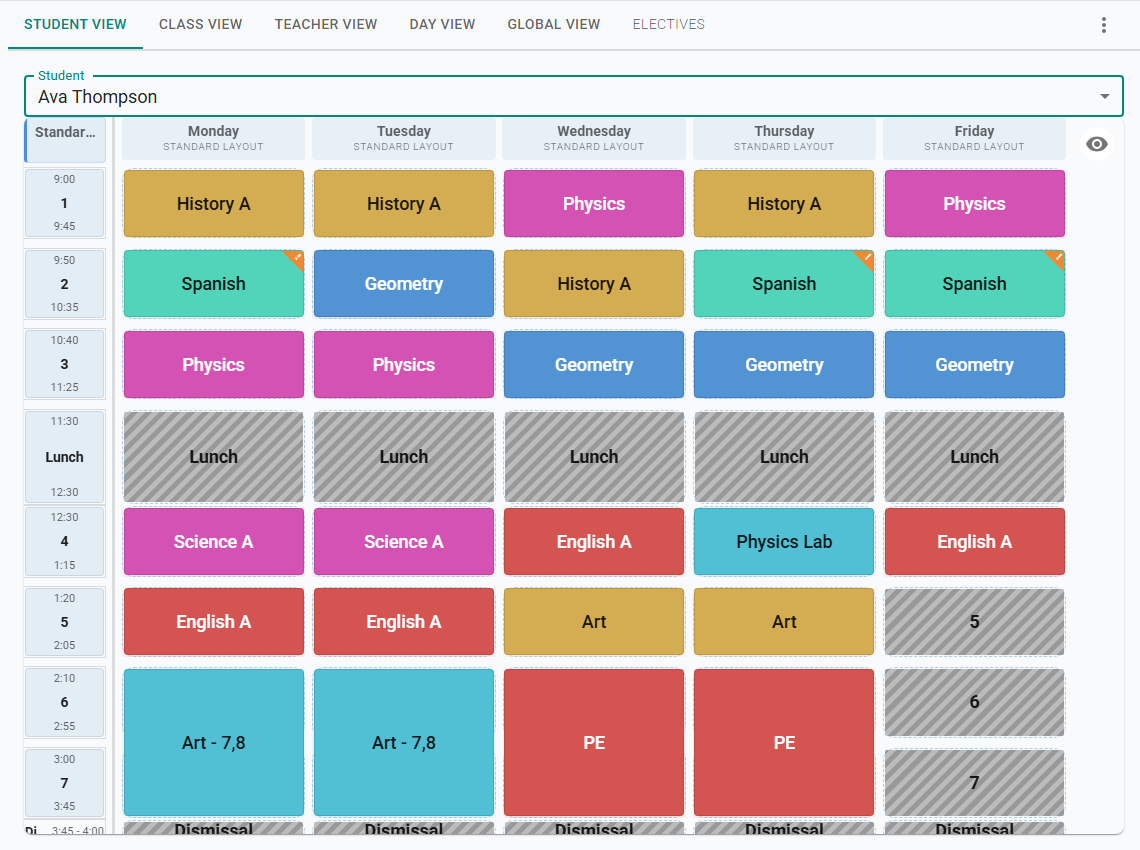 Ava's schedule, with her class's subjects, track A of Homeroom and the Art track of Electives.
Individual Scheduling
Not available by default
Individual scheduling isn't part of a standard ScheduLearn account. The ScheduLearn team sets it up for schools that need it. Contact support if you think your school does.
With individual scheduling, ScheduLearn schedules every student individually instead of scheduling classes. It's for schools where students build their own programs from many electives, so they can't be split into a few tracks.
Most schools don't need it. If your students can be grouped into tracks that take the same subjects, use class divisions instead.
With individual scheduling:
- ScheduLearn makes sure no student has two lessons at the same time, based on each student's own subjects.
- Divisions aren't used. A student's subjects are their Required Subjects and their subject choices.
Subject Choices
A subject choice lets students choose from a list of subjects, such as "2 of Biology, Chemistry and Physics". Subject choices belong to a class.
To add one, open the class card, expand Subject Choices and click New Subject Choice (below):
- Name
- Selection Type — Select or Rank.
- Num Required — how many subjects each student takes from the choice.
Then pick the subjects. A subject can be in only one subject choice per class.
If you take a subject out of a subject choice, students who picked it lose it, unless it's also in their Required Subjects or another subject choice.
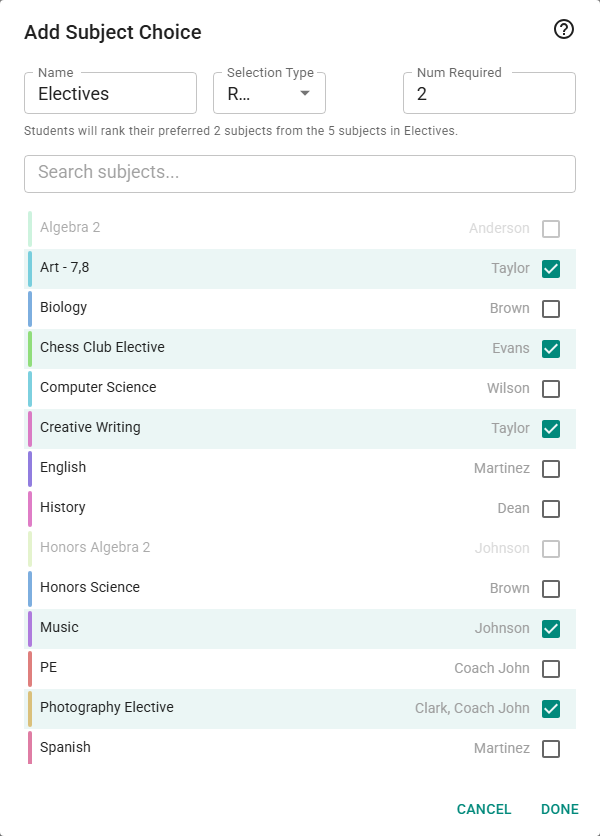 An Electives choice. Each student ranks the electives they want and takes two.
Each subject choice has its own section on the student card (below):
- With Select, tick the subjects the student takes.
- With Rank, drag subjects from Not Ranked up into Ranked Choices, in order of preference. ScheduLearn gives the student Num Required of them, and prefers the higher-ranked ones. A first choice isn't guaranteed.
A subject choice shows in red with an asterisk until the student has picked exactly Num Required subjects (Select) or ranked at least that many (Rank).
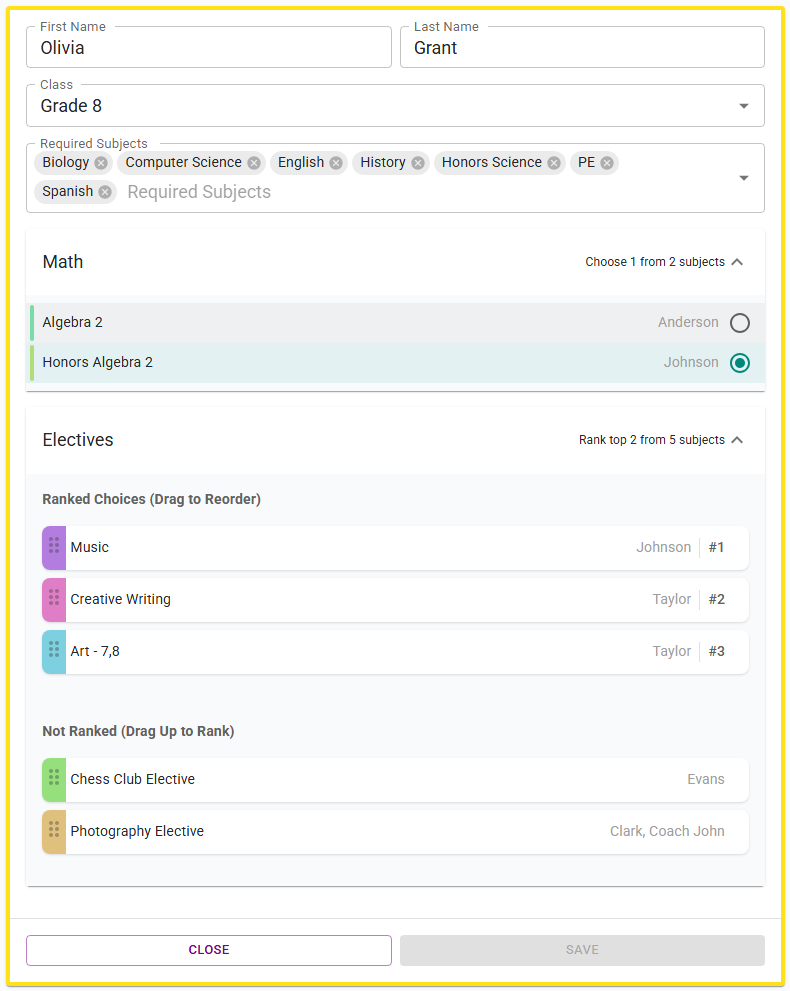 Olivia picks Honors Algebra 2 and ranks Music, Creative Writing and Art.
After a solve, Student View shows the subjects each student got (below). The Subjects panel in the staging area lists the student's subject choices. To change what the student takes, select another subject they picked or ranked. Apply Defaults gives each student their top choices again.
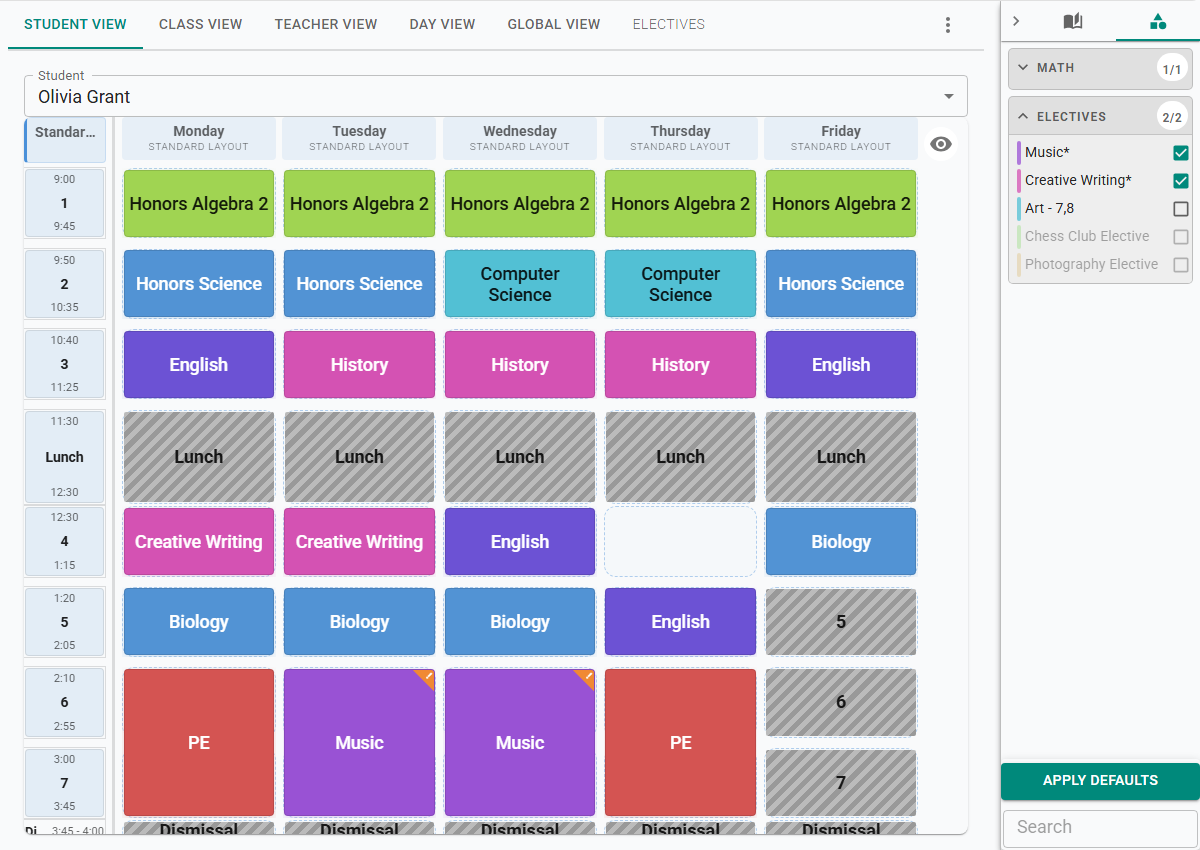 Olivia got her first two electives, Music and Creative Writing.
Capacity
- Maximum Capacity on a subject card is the most students the subject can have.
- Capacity on a classroom card is the most students the classroom can hold (see Classroom Capacity).
Leave them empty for no limit.