Schedule Structure
The schedule structure is the frame of your school's schedule. It has three parts:
- Periods are the blocks of time in a day.
- Day types are sets of periods. A school with a shorter Friday might have two day types.
- Days are the days in your schedule cycle. Each day is assigned a day type.
Tip
Everything else in ScheduLearn builds on the schedule structure, so set it up carefully. Changing it after you've built your schedule takes more work.
Planning
Most schools need one or two day types. Add more only when a day has different period times, such as a shortened Friday. If a day just ends early, you can block its last periods instead (see Non-Academic Periods).
If different classes run on different schedule structures, you will need to use multiple schedule structures. For example, a Middle School and High School may share teachers and classrooms while using different period lengths.
If your school doesn't use fixed periods, see Time-Based Schedules.
Setting Up
The first time you open the Structure page, a short setup asks for the days you have school on and your first day type.
Start by choosing the Schedule type:
- Weekday Schedule — the days of the week. This is the most common type of schedule, allowing for Mon-Fri or Sun-Fri, etc.
- A / B Schedule — two days, Day A and Day B.
- Custom Schedule — a rotating cycle of up to 14 days.
You can rename the days in the list, now or later.
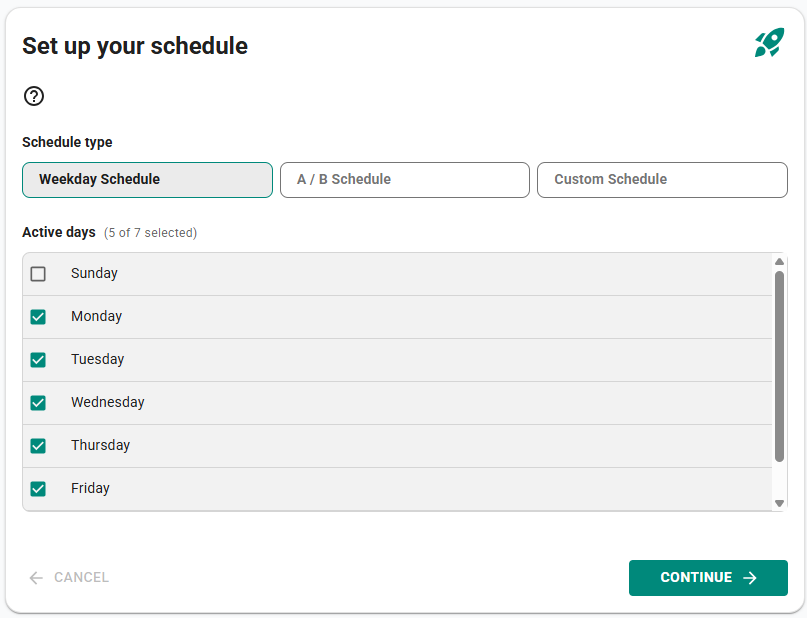 Choosing the days in your schedule cycle.
Next, set up your first day type:
- Period style — Period-based or Time-based (see Time-Based Schedules).
- Day Type Name — for example, "Standard" or "Monday–Thursday".
- Day Start Time — when the first period starts.
- Number of Periods — every block in the day, including lunch, recess and dismissal.
- Period Length (min) — the usual period length. You can change single periods later.
- Time Between Periods (min) — the usual break between periods. Use 0 for no break.
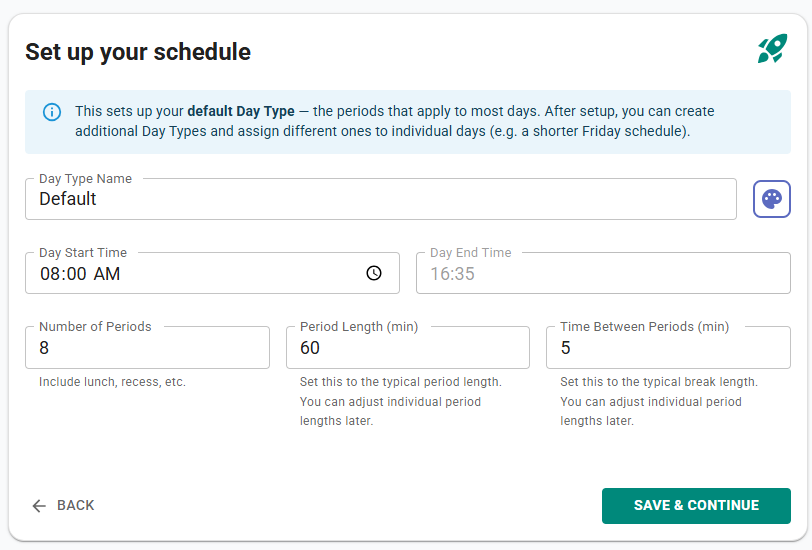 Setting up your first day type.
The Structure Page
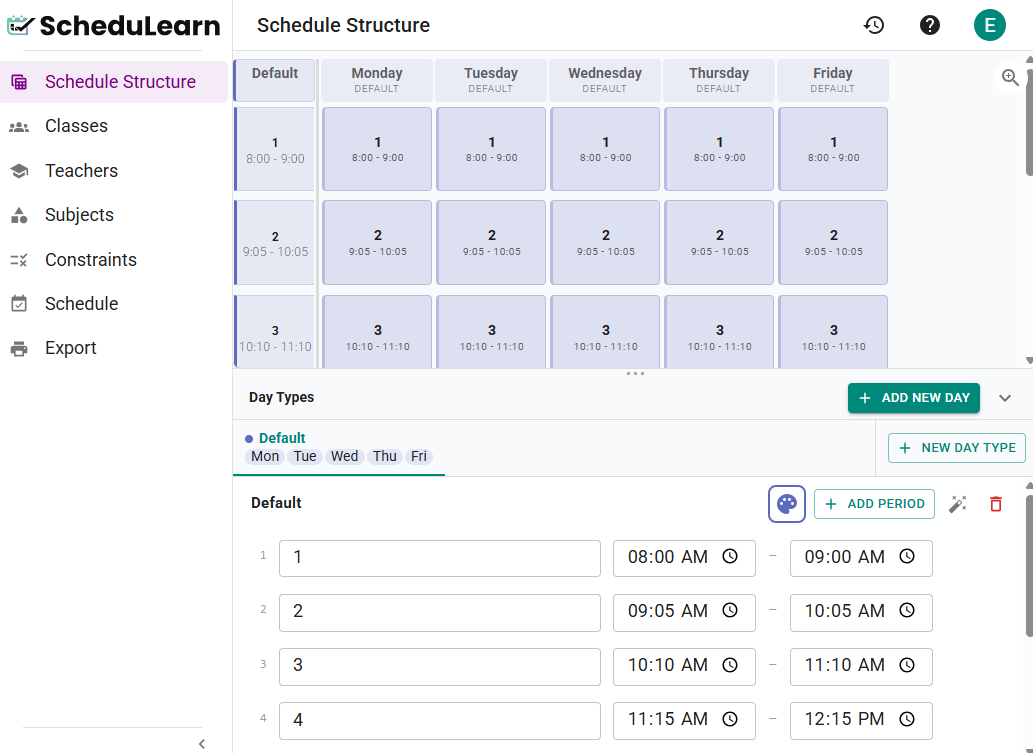 The Structure page. The Day Types panel is on the right.
The grid shows every day in your cycle. The Day Types panel on the right lists your day types and the days that use each one.
The bar at the top has:
- View, to change the grid's column width and row height,
- the ⋮ menu, with Add New Day.
With more than one schedule structure, the bar also has the schedule structure menu, and the ⋮ menu has Rename structure and Delete structure (see Multiple Schedule Structures).
Days
Click a day's header to change it (below):
- Day name — rename the day.
- Day Type — choose which day type the day uses.
- Make this day different — give the day its own copy of its day type, which you can then change.
- Remove this day — remove the day from your cycle. Its lessons are unscheduled, and constraints that mention it are deleted. Only the last day can be removed.
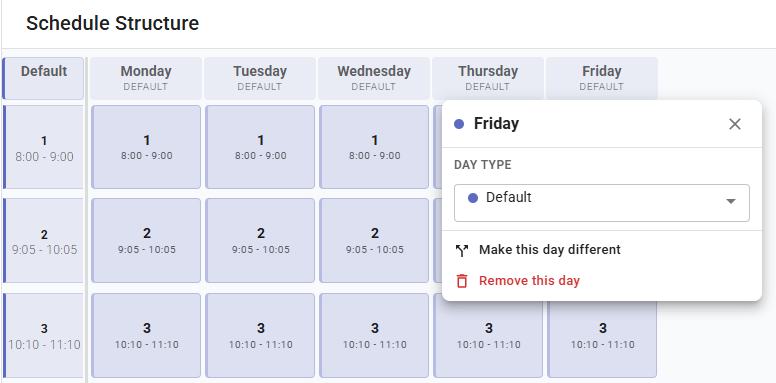 Clicking a day's header.
Add New Day, in the ⋮ menu at the top of the page, adds a day at the end of your cycle.
Non-Academic Periods
Every cell is open for lessons until you block it. To block a time, such as lunch or dismissal, click its cell.
To block several cells at once, drag across them and click the selection (below). Click a blocked cell again to unblock it.
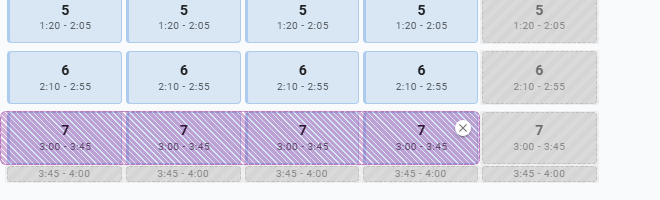 Period 7 selected on Monday to Thursday. Click the selection to block or unblock all four.
Tip
If lunch can happen in more than one period, leave those periods open and add lunch as a subject instead.
Day Types
Click a day type in the panel to open it. You can rename its periods, change their times, and add periods. Only the last period can be deleted.
Editing Periods
Set the times for the day type then click Save or Discard at the bottom of the list.
A changed name or time is shown in italics. The saved value is shown above it.
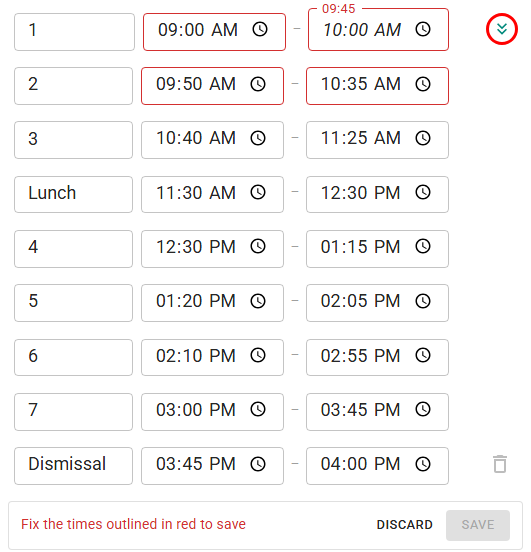 Period 1 now ends at 10:00 instead of 9:45, so it overlaps Period 2. The shift button is circled in red.
Each period has to end before the next one starts. A time that overlaps is outlined in red. Hover over it to see which period it clashes with. You can't save until every red outline is fixed.
Note
You can't add or delete a period, or use Recompute periods, while you have unsaved changes.
Shifting Periods
When you change a period's time, ScheduLearn offers to move the periods around it so the breaks stay the same. A shift button appears at the end of the period's row (circled in red above):
- appears after you change an end time. It moves every later period.
- appears after you change a start time. It moves every earlier period.
In the screenshot above, Period 1 ends 15 minutes later. Clicking moves every later period 15 minutes later (below). Hover over the button to see what it will do.
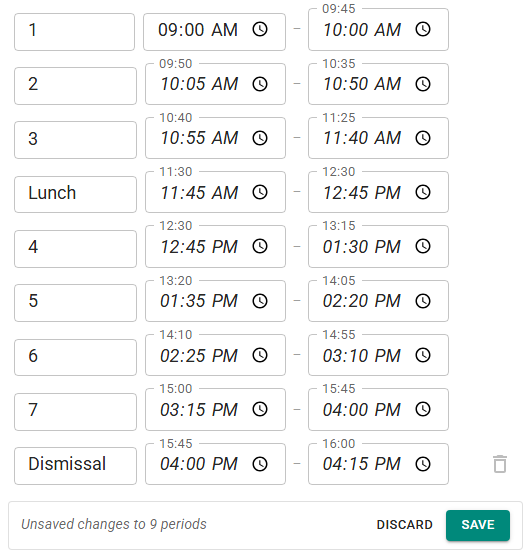 Every period after Period 1 has moved 15 minutes later.
Renumbering Periods
When your periods are numbered, renaming one can break the count. For example, renaming 2 to Break leaves 1, Break, 3, 4.
A bar above the periods offers to fix the names after it (below). Click Renumber to continue the count (1, Break, 2, 3), or × to dismiss it. Hover over the bar to see every name it will change.
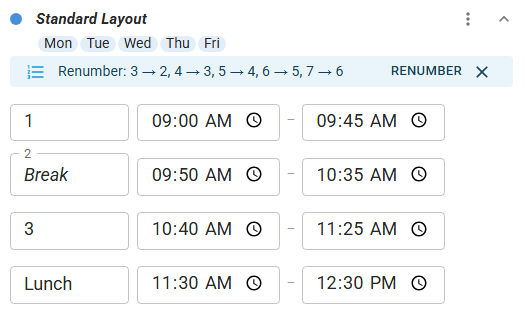 The Renumber bar after renaming period 2 to Break.
ScheduLearn recognizes most numbering styles, such as Period 1, Lesson 01, 1st Hour and Block A. Names that aren't numbered, like Lunch, are skipped. Names you type yourself are never renumbered.
Adding a Day Type
There are two ways to add a day type:
- Click New Day Type at the top of the Day Types panel. It starts empty. Add periods one at a time with Add Period, or all at once with Generate periods.
- Click a day's header and choose Make this day different. The new day type starts as a copy of the day's current one.
The Day Types panel lists every day type with the days that use it, and each day in the grid is shown in its day type's color (below).
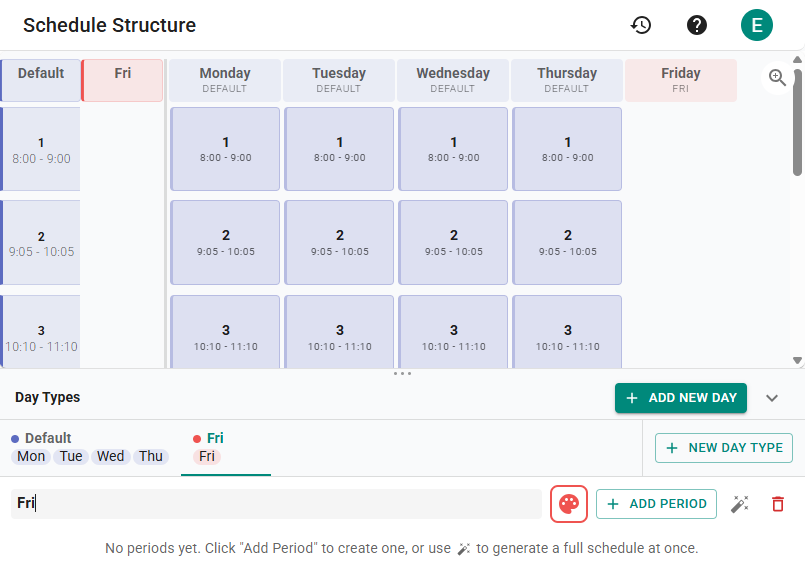 Two day types. Standard Layout is used Monday to Thursday, and the shorter Friday day type is used on Friday.
The day type's ⋮ menu allows you to Rename, Change color, Recompute periods and Delete Day Type. Recompute periods replaces the day type's periods with evenly spaced new ones. Delete Day Type deletes its periods and removes it from the days that use it. Lessons on those periods are unscheduled, and constraints on them are deleted.
Changing a Day's Day Type
To give a day a different day type, click its header and choose the day type (below).
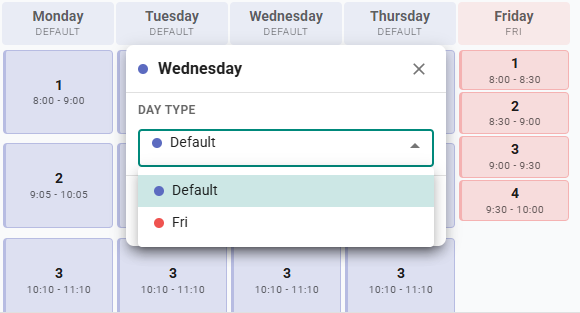 Choosing a day type for Friday.
Lessons and constraints belong to periods. If the day already has lessons or constraints, ScheduLearn asks where to move them (below):
- Each old period has a dropdown with the new period its lessons and constraints move to. ScheduLearn fills these in for you.
- Choose Drop / Unschedule for a period that has no match.
- The Impact Summary shows how many lessons will move or be unscheduled, and whether any constraints will be deleted.
Click Confirm Change to apply it.
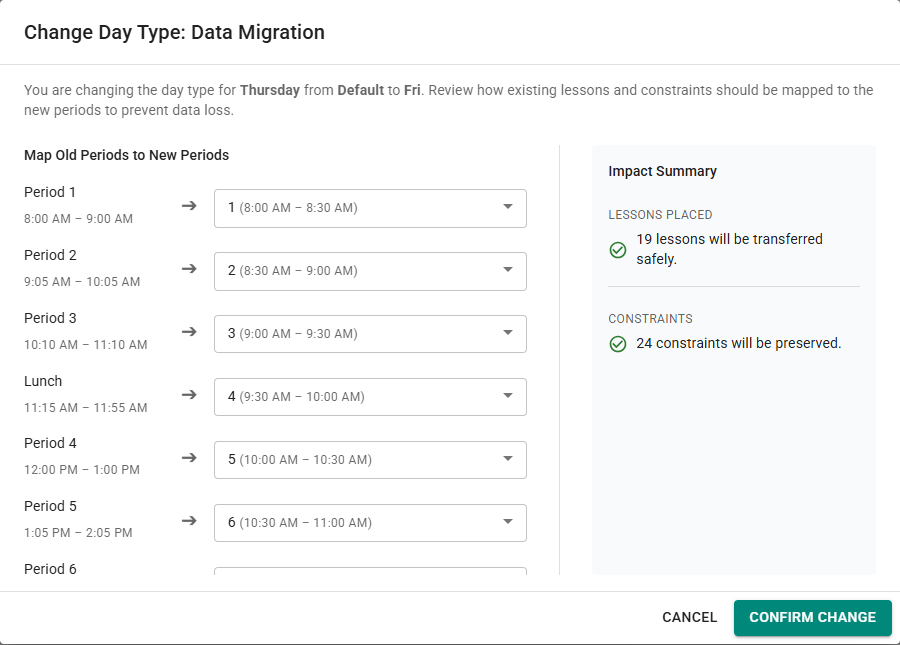 Moving a day's lessons and constraints to its new day type.
Make this day different never needs this step, because the copy has the same periods.
Time-Based Schedules
Some schools don't run on fixed periods. In a time-based schedule, ScheduLearn splits the day into short time slots of equal length, and lessons are placed by clock time.
To set one up, choose Time-based as the Period style when you create the schedule structure. Then set the Day Start Time, Day End Time and Time slot length.
In a time-based schedule:
- the grid shows clock times instead of period numbers
- the panel on the right has Edit times, to change when the day starts and ends, and Switch to period-based
- lesson lengths are in minutes
- there's one day type, so every day has the same hours. Block cells to shorten a day.
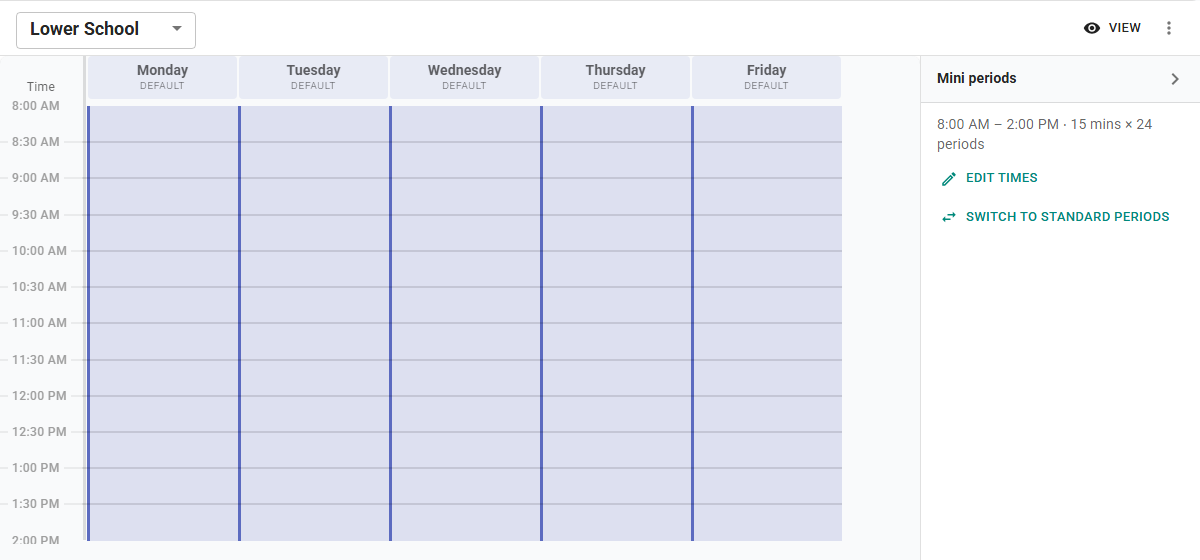 A time-based schedule with 15-minute time slots.
If a schedule structure has one day type and all its periods are the same length, 30 minutes or less, ScheduLearn suggests switching to a time-based schedule. If you close the suggestion, the ⋮ menu at the top of the page still offers the switch.
Multiple Schedule Structures
Note
If you don't see New Schedule Structure, the feature isn't turned on for your account. Contact support to turn it on.
Use more than one schedule structure when divisions run on different bell schedules. For example, a Middle School might use 45-minute periods while the High School uses 40-minute periods.
You don't need more than one if grades just have lunch at different times. Block the lunch periods on each class's calendar instead (see Class Calendar Constraints).
To add a schedule structure, open the schedule structure menu at the top left of the page and choose New Schedule Structure (below). The setup runs again. Give the new structure a name in Schedule Structure Name. All structures share the same days.
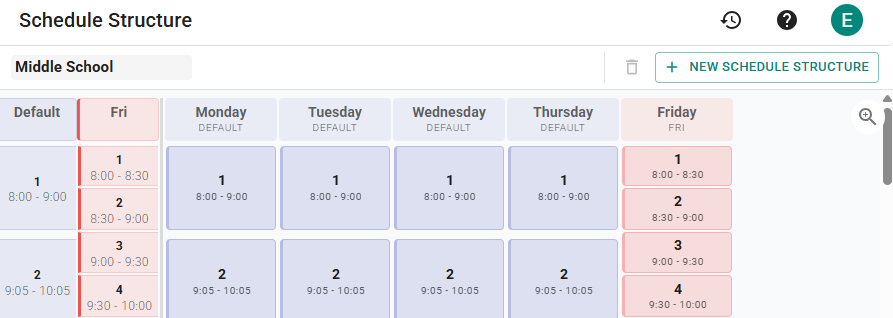 The schedule structure menu. New Schedule Structure is circled in red.
A new structure can create its own day type, or reuse one from another structure with Use Existing Day Type. A shared day type is marked with a shared icon. Editing it changes every structure that uses it. To change it for one structure only, open it and click Edit only here.
One structure can be time-based and another period-based. For example, a Lower School can use a time-based schedule while the Middle School uses periods.