Export
Export your schedule as a PDF, an Excel file or a CSV file.
Need another format? Contact us. We're often able to help!
The settings are split across four tabs: Content, Appearance, Layout and CSV. A preview of the export is on the right, and the export buttons are at the bottom.
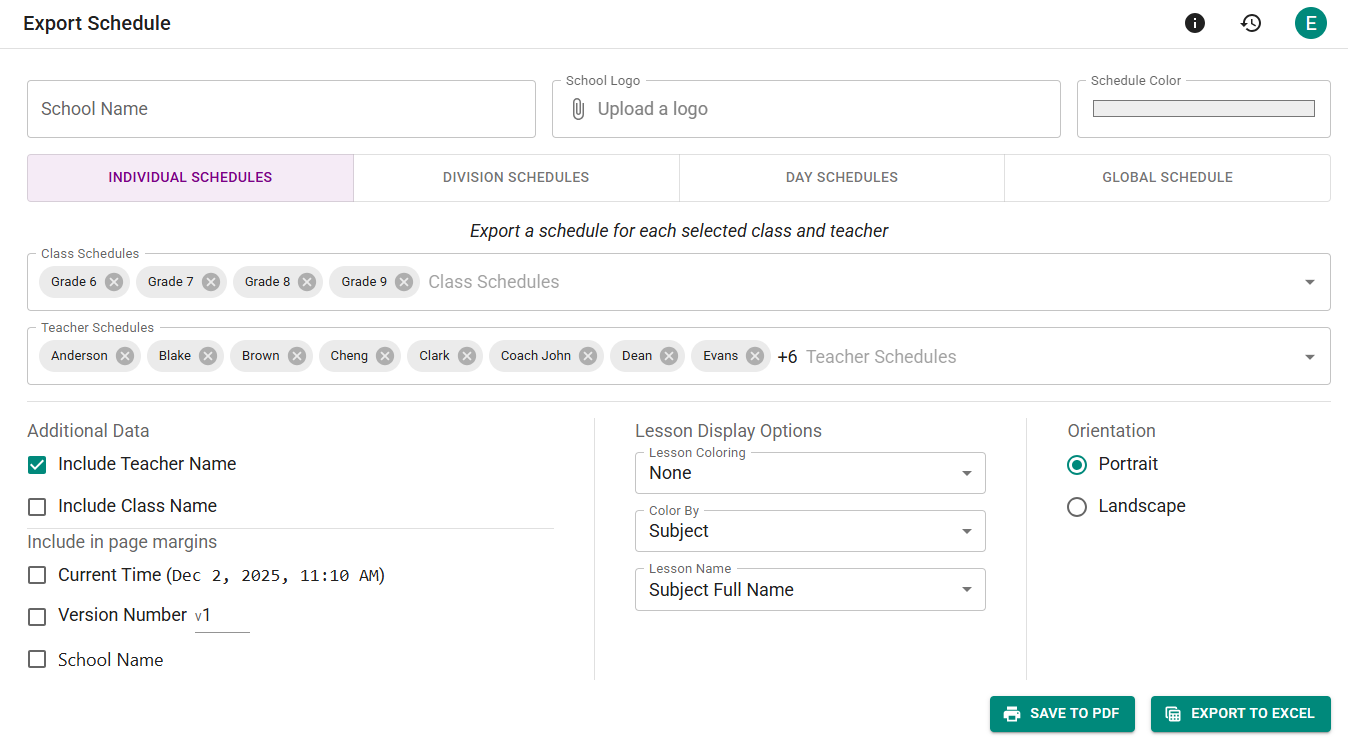 The Export Page.
Content
Branding
The School Name, School Logo and Color you set here appear in the title band at the top of every exported page.
What to Export
Choose the kind of schedule to export:
- Individual — a page for each class, teacher, classroom or student you select under Class Schedules, Teacher Schedules, Classroom Schedules and Student Schedules.
- Division — a schedule for one combination of tracks in a class, or for every combination (see below).
- Day — the whole school on the days you select under Export Days.
- Global — every class on one combined grid. If you have more than one schedule structure, choose which one under Schedule Structure.
- Custom View — any custom view you have created on the Schedule Page.
The class, teacher, classroom, student and day lists start on All, so anything added since your last export is included. Use the button at the start of a list to export Only some, All except some, or None of them (see Choosing what the filter shows).
Division Schedules
The Division option appears only if divisions have been created for a class. Choose the class, then select a track from each division. To export every combination at once, check Create all N possible track combinations.
 Exporting a class with two divisions, each with 2 tracks, giving 2 × 2 = 4 possible combinations.
Appearance
Lesson Details
- Include Teacher Name — Adds teacher names to lessons. For teacher schedules this only applies when multiple teachers teach the same lesson.
- Include Classroom Name — Adds classroom names to lessons. Only shown when the Classrooms feature is on.
- Include Class Name — Adds class names to lessons. For class schedules this only applies when multiple classes attend the same lesson.
- Include Lesson Time — Adds each lesson's start and end time.
Lesson Display
- Lesson Coloring — Fill, Border or Dot. None turns color off.
- Color By — Use the color assigned to the Subject, Teacher, Class or Classroom.
- Lesson Name — Subject Full Name (the default), Subject Short Name for tighter layouts (see Subjects), or Lesson Name if you've renamed lessons.
Layout
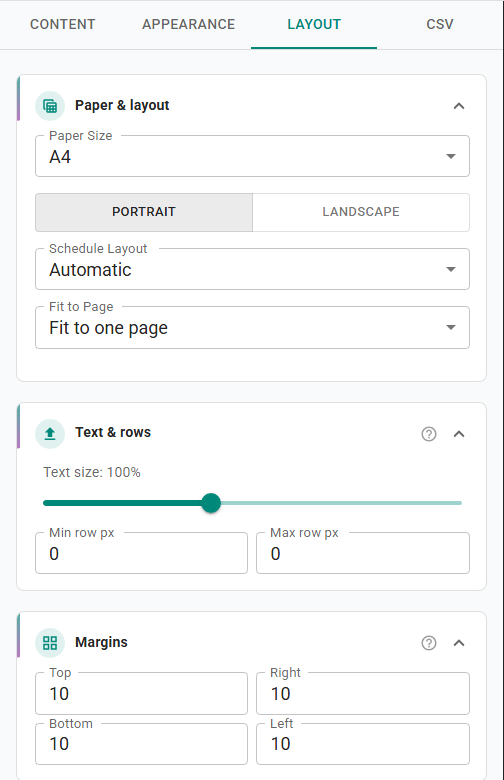 The Layout tab.
- Paper Size — A4 or Letter.
- Portrait / Landscape — In portrait, days are columns and periods are rows. In landscape, periods are columns and days are rows. Global, Custom View and clock-view exports keep days as columns either way.
- Schedule Layout — Period grid draws one row per period. Clock view draws lessons to scale on a timeline, which suits schedules with periods of different lengths. Automatic picks the clock view for time-based schedules and for schedules with more than two day types, and the period grid otherwise.
- Fit to Page — Fit to one page shrinks each schedule to fit a single page. Custom scale lets you set the scale yourself, and Allow multiple pages lets a long schedule continue onto more pages.
- Time gutter — For the clock view only, how often times are marked down the side.
- Text & rows and Margins — Fine-tune the text size, row heights and page margins.
- Page footers — Stamp each page with the Current Time, a Version Number of your choosing, or the School Name.
Exporting to CSV
Export to CSV downloads a spreadsheet-friendly file with one row for each scheduled lesson. Unscheduled lessons are left out.
On the CSV tab, Rows for sets which lessons are included:
- Selected schedules — the lessons on the schedules you chose under What to export. A lesson on more than one of them, such as a lesson shared by a class and a teacher you selected, appears once.
- Whole school — every lesson, whatever you selected.
Check the columns you want; they appear in the order shown. Lessons longer than one period sets how a double period is written:
- One row, marked with its full period range (for example, periods
3–4) - A separate row for each period
- One row, first period only
Times are written in 24-hour format, and multiple teachers, classrooms or classes in one cell are separated by semicolons.
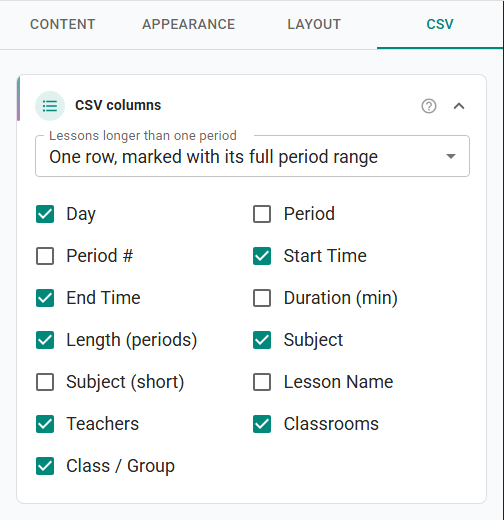 The CSV tab.
Saving to PDF
Save to PDF opens your browser's print dialog. Choose Save as PDF as the destination to save the file, or pick a printer to print it directly. Printing works best in Chrome or Edge; Firefox has known layout issues.
Version History Tag
Every export saves a tagged version Schedule Exported (see Version Tags).
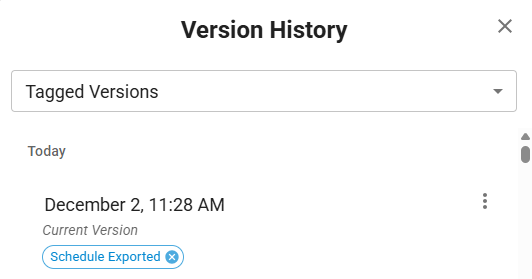 Version history entry created automatically after export.