Entering Data
Adding Classes, Teachers and Subjects
Once your Schedule Structure is set up, enter your Classes, Teachers and Subjects.
For more detailed walkthroughs on each area, see:
Classes
A Class in ScheduLearn represents a group of students (e.g., 7A, Grade 5, Year 10). Students in a class take the same lessons, apart from any class divisions.
A class can still have several lessons at the same time, for example when it splits into groups or with same time constraints.
There's often more than one way to set up your classes. If you're unsure, it's often better to make the class broader, for example the whole grade instead of 9A and 9B. Class divisions let a class split up for some lessons, such as levels or electives. For help choosing how to split your classes, see Classes.
To create a Class:
- Navigate to the Classes Page
- Click Add Class on the toolbar
- Name the Class (e.g., 7A, Grade 9) and save
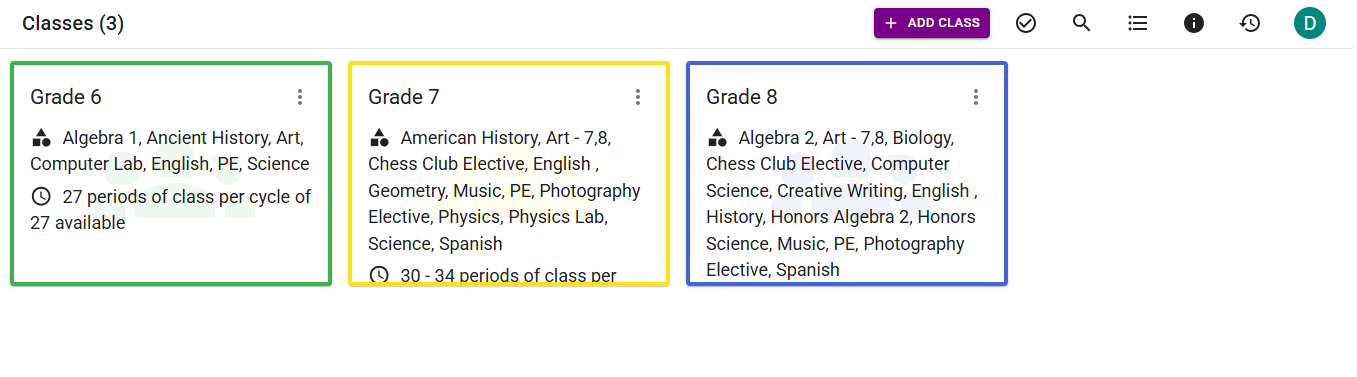 The Classes Page.
Reuse a class for similar sections
If you have several nearly identical classes — for example 1A and 1B that take mostly the same subjects with only a few differences — you don't have to build each one from scratch. Set up one class completely, then choose Duplicate from its card's ⋮ menu. The copy gets its own subjects, divisions and calendar. It keeps the same name, so rename it. Then change the few subjects that differ.
When getting started you can ignore:
- Class Divisions
- Edit Calendar
Classes explains them when you're ready.
Teachers
To add a teacher:
- Navigate to the Teachers Page
- Click Add Teacher
- Enter the teacher’s name and save
We recommend waiting to add teacher availability constraints until after you have created some Subjects and generated your first schedule.
Subjects
A Subject is taught to one or more Classes and consists of one or more Lessons.
- If Math is taught separately to 7A and 7B → Create two Subjects (e.g., Math 7A, Math 7B).
- If the two classes take Math together with the same teacher(s) → Create one Subject and select both Classes.
To create a Subject:
- Navigate to the Subjects Page
- Click Add Subject
- Name it, choose its classes and teachers, and choose how often it meets
Subjects explains each field and how to set up lessons.
Bulk Importing Data (The Import Wizard)
If your list of courses is in a spreadsheet, the Import Wizard can help you import your classes, teachers and subjects all once.
To access the Import Wizard, click the Account Menu Button on the right of the toolbar and select Import Wizard.
Preparing Your File
The wizard supports .xlsx, .xls, and .csv formats.
If you aren't sure how to format your data, you can click Download Template on the first step of the wizard to get a pre-formatted example.
- Multiple Items: If a subject has multiple teachers or is taught to multiple classes simultaneously, simply separate the names with commas in your spreadsheet (e.g., "Mr. Smith, Ms. Davis" or "Grade 9, Grade 10"). All the teachers listed on a row teach the subject; several classrooms listed on a row become a pool that ScheduLearn picks one classroom from.
- Double Periods: For each subject, your file only needs the Number of Lessons, the number of times it meets each cycle. You can make some lessons double or triple later in the wizard.
Step-by-Step Import Guide
-
Upload File
If your school uses multiple Schedule Structures, you will first be prompted to select which structure you want to import this data into.
Note
You can only import subjects into one schedule structure at a time. Repeat the import process for each structure.
Drag and drop your spreadsheet into the upload area or click to browse your files.
-
Map Columns
ScheduLearn needs to know which columns in your spreadsheet match our system fields. Use the dropdown menus to match your file's headers to:
- Subject Name
- Teacher Name
- Class / Group
- Number of Lessons
- Classroom (optional) — only shown when the Classrooms feature is on
-
Review Classes & Teachers
This step is where ScheduLearn helps you prevent typos and duplicate entries. ScheduLearn compares your file to the teachers, classes and classrooms you already have.
For every teacher, class and classroom in your file, choose an Action:
- Create New: Creates a brand-new entry in ScheduLearn.
- Link to Existing: If ScheduLearn finds an exact or close match in your existing data, it will suggest linking them to avoid creating duplicates.
- Combine with New: If your file contains typos (e.g., "Mr. Smith" and "Mr. Smtih"), the system will flag them as potential duplicates. You can merge them together here so they share the same correct name.
- Skip: Ignores the entry entirely so it is not imported.
Tip
Use the filter dropdown at the top right to show All Items, Creates Only, Exact Matches or Merge Suggestions.
-
Review Subjects
In the final step, you will see a list of all the Subjects ready to be created.
Here, you can review your data and make specific adjustments before finalizing:
- Edit Names & Links: Click into any text field to fix a subject name, or use the dropdowns to change the assigned teacher/class.
- Handle Duplicates: ScheduLearn will highlight rows in yellow if a similar subject already exists in your database or is duplicated earlier in your spreadsheet. Hover over the warning icon to see why. Turn off the row's Create switch to skip it, or click Skip All Duplicates.
- Adjust Lesson Lengths & Spread: Click the dropdown arrow on the far right of any row to open the advanced settings. Here, you can change the Lesson Spread (e.g., "No more than 1 lesson per day") and configure Lesson Lengths (e.g. making one lesson a double period). Lengths are in periods, or in minutes for a time-based schedule.
Every row needs a name and at least a teacher or a class. Fix or skip the rows that are highlighted, then click Finish Import.