Page Tools
The Classes, Teachers, Subjects, Classrooms and Students pages share the tools described here.
Duplicating Items
Duplicating an item creates a copy with the same name and, except for students, a new color. Rename the copy afterward so you can tell the two apart. What gets copied depends on the item:
- Subjects — teachers, classrooms, classes, lessons and constraints are all copied, but the lessons start unscheduled.
- Classes — the class calendar, its divisions and tracks, its subject choices, and a new copy of each of its subjects, assigned only to the new class. Its students aren't copied.
- Teachers — the teacher's calendar and teacher constraints. The copy isn't added to any subjects.
- Classrooms — the name, capacity and classroom calendar. The copy isn't added to any subjects.
- Students — the class, subjects and tracks. The copy has its class's color.
Warning
Subject-to-subject constraints such as Not the same day as are copied too, and still point at the same other subject. For example, if English 6 can't be on the same day as Literature 6 and you duplicate it to create English 7, English 7 also can't be on the same day as Literature 6. Review the constraints after duplicating a subject.
To duplicate an item in Grid View, click the ⋮ menu on its card and choose Duplicate (below). In List View, click the duplicate icon on its row (circled in red below).
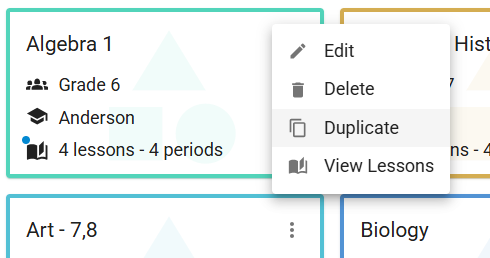 Duplicating an item in Grid View.
 Duplicating an item in List View.
Grid View and List View
Every item page can be displayed in either Grid View (the default) or List View. Switch between them with the button on the toolbar (circled in red below). The choice applies to every item page.
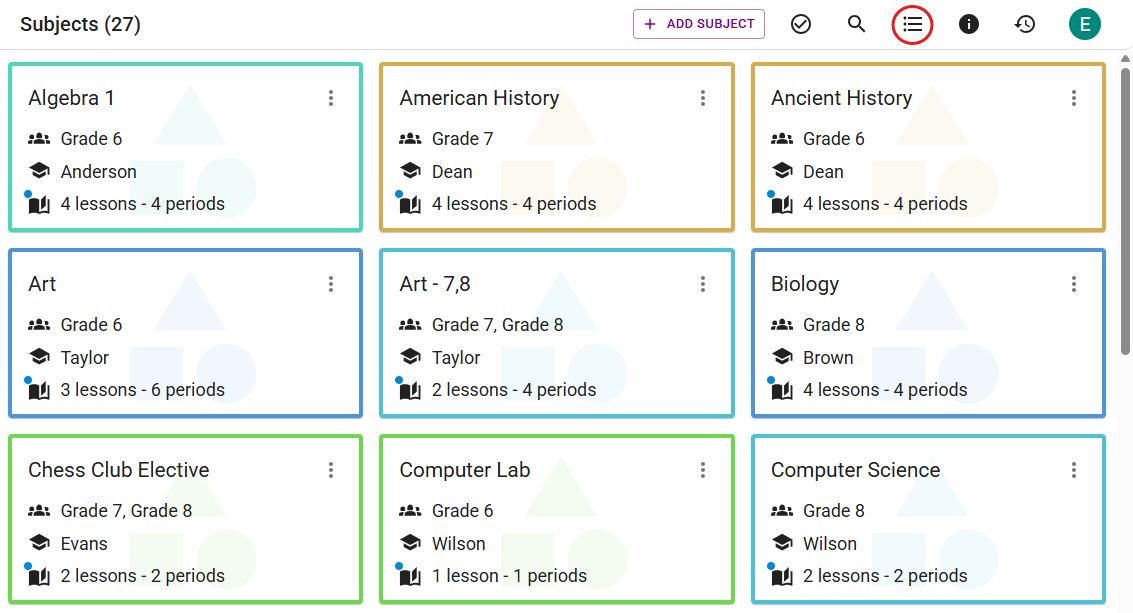 Grid View.
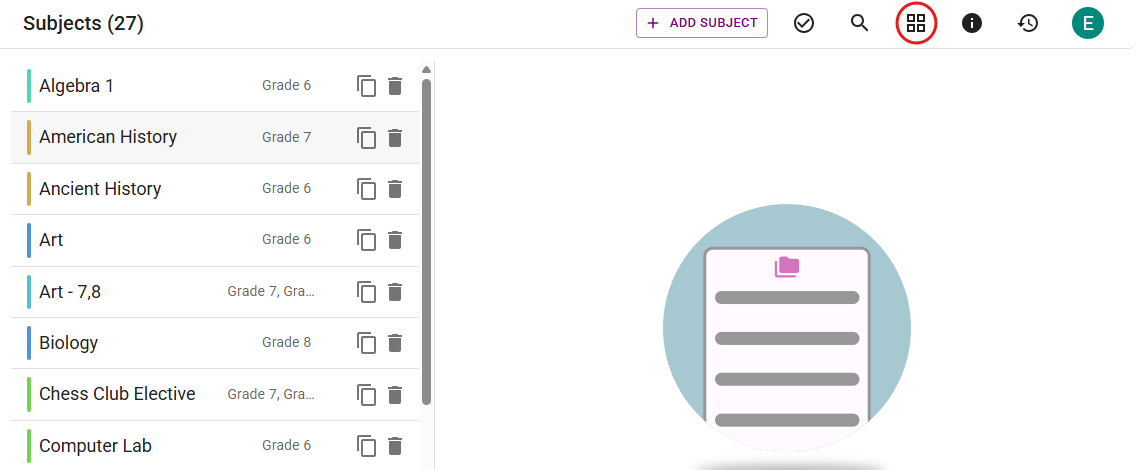 List View.
Filtering
Search and filters sit in the page header, next to the title:
- Search opens a box for searching by name. On the Subjects page it also matches teacher, class and classroom names. While you're searching, the button shows what you typed.
- Filters narrows the page. The Subjects page filters by class, teacher and classroom. The Teachers and Students pages filter by class. Structure only appears if you have more than one schedule structure, and the Classrooms page has no filters. Once you pick one, an is / is not switch appears before your picks, so you can show the subjects a teacher teaches or the ones they don't.
Each list includes a No Class, No Teacher or No Classroom option for finding items that are missing one. Choosing several values in one filter shows items that match any of them; using several filters shows only items that match all of them.
A dot on either button means it's narrowing the page, and the title shows how many items are left (for example, Subjects (12 of 40)). Clear resets the search and every filter.
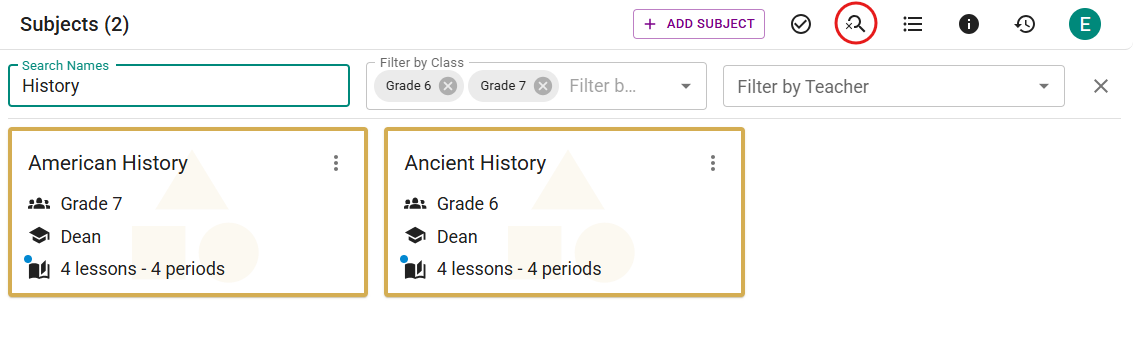 The Subjects page filtered to Grade 6.
Note
Search and filters stay in place when you leave the page and come back. Use Clear to see everything again.
Group By
On the Subjects page, click the Group by icon on the toolbar and choose Teacher or Class to put the cards under a header for each. Choose None to turn it off. On the Students page, you can group by Class. A subject with several teachers or classes appears under each of them.
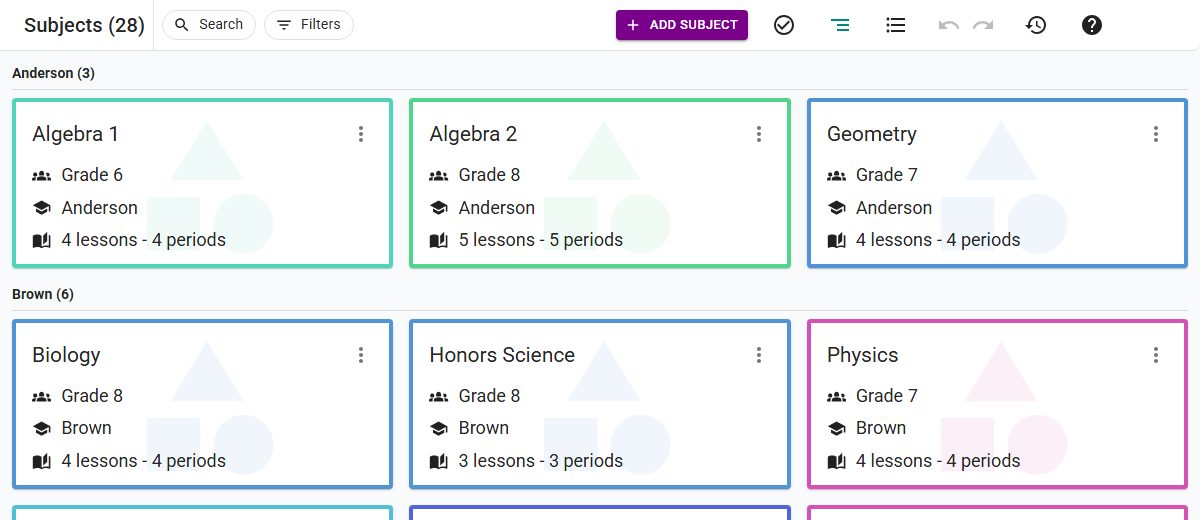 Subjects grouped by teacher.
Select Mode
Select Mode lets you change or delete many items at once. Click the Enable Select Mode icon on the toolbar (circled in red below), select the items, then choose an action from the bar above them:
-
Edit — change the selected items together (see below).
-
View Lessons — on the Subjects page only, list every lesson of the selected subjects.
- Delete — delete the selected items. Deleting classes also deletes the subjects that belong only to those classes, and the classes' students.
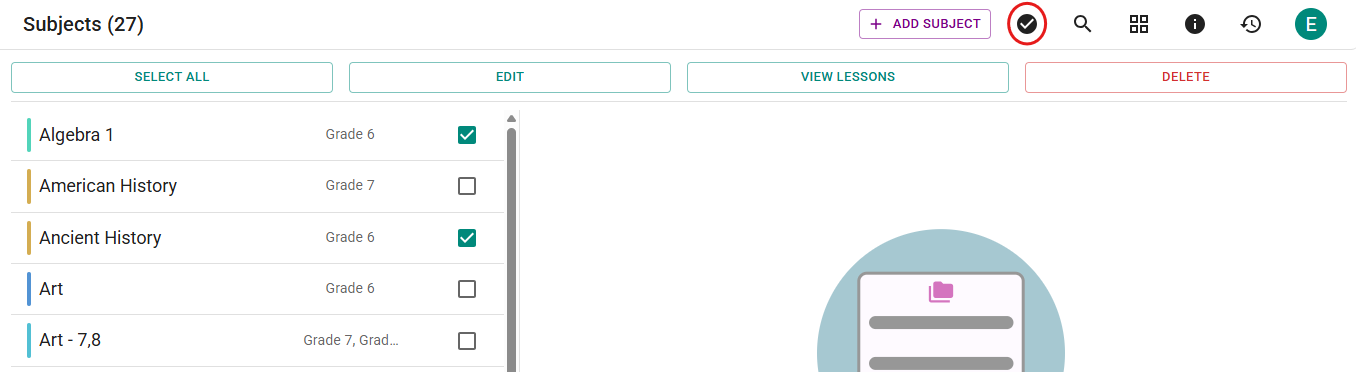 Select Mode on the Subjects page, with three subjects selected.
Select All selects only the items currently shown, so you can filter first. For example, to change all Grade 6 subjects taught by Anderson:
- Open Filters and pick Grade 6 under Class.
- Pick Anderson under Teacher.
- Click Select All.
- Click Edit.
In List View, hold Shift and click a checkbox to select every item between it and the last one you clicked.
Editing Several Items at Once
Edit opens a window for changing all the selected items together. Each change you make is listed under Pending changes, and nothing is saved until you click Save.
For subjects, the Attributes tab has:
- Color — pick a color, then click Apply.
- Classes — choose classes, then Add or Remove.
- Teachers and Classrooms — choose teachers or classrooms, then Required to have them always teach or host the selected subjects, Optional to add them to the pool ScheduLearn chooses from, or Remove. Classrooms only appears when the Classrooms feature is on.
- Lessons at the same time — click On or Off. When on, ScheduLearn tries to place the subject's lessons at the same time each day.
- Lesson spread — choose an option, then click Apply.
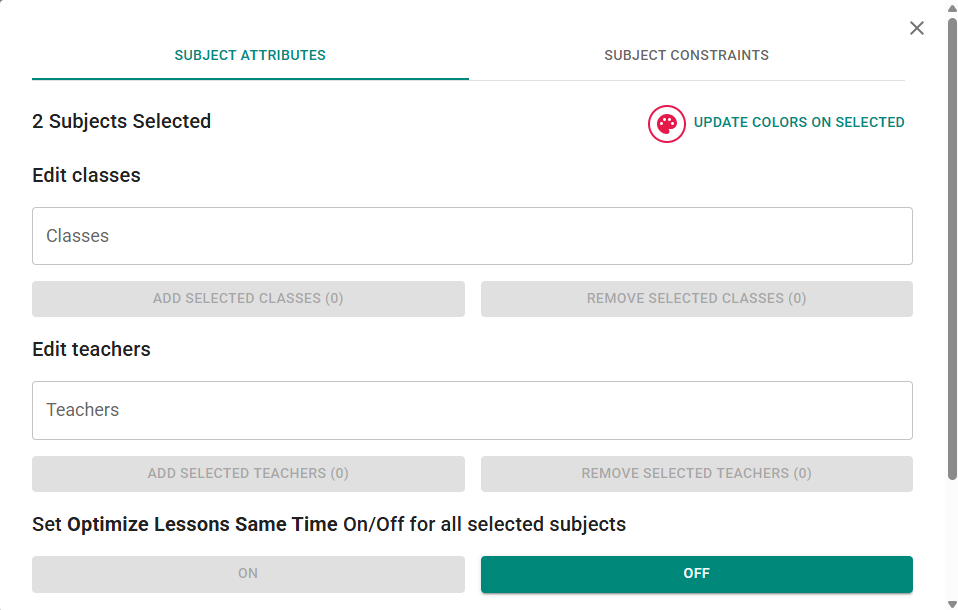 Editing three subjects, with one change waiting to be saved.
If some of the subjects' lessons have their own teachers or classrooms, saving asks Update overridden lessons? (see Modifying Subject Lessons).
Adding Constraints to Several Subjects
On the Constraints tab, choose a Constraint Type, fill in its fields and click +. When you save, the constraint is added to every selected subject that doesn't already have it.
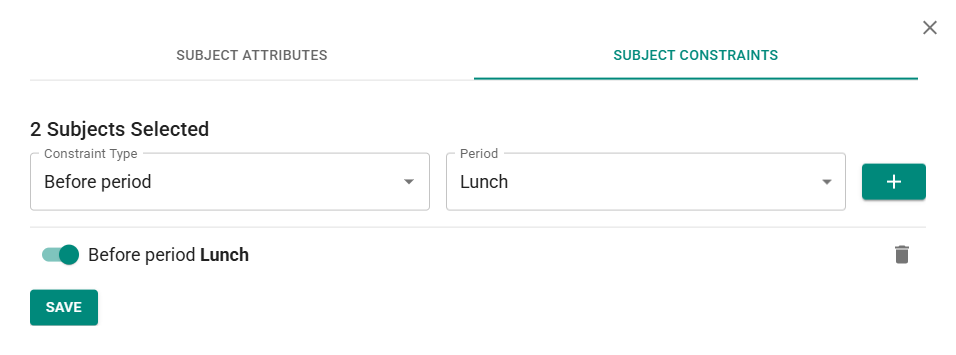 Adding a constraint to three subjects.
To remove constraints from many subjects at once, use the bulk actions on the Constraints Page.
Other Pages
- Classes — Color, Subjects (Add or Remove), and a Constraints tab for the classes' calendar.
- Teachers — Color, Subjects (Required, Optional or Remove) and Teacher weight (when teacher weights are on), plus Calendar and Constraints tabs.
- Classrooms — Color, and a Constraints tab for the classrooms' calendar.
- Students — the track for each division.