Getting Started
Welcome to ScheduLearn! The user guides are designed to help you build your schedule most efficiently within ScheduLearn. If you find anything unclear, you can always shoot us an email at contact@schedulearn.com.
This guide will walk you through opening an account, the key concepts, finding your way around ScheduLearn, and using version history to manage your drafts.
Account Creation
- Go to https://app.schedulearn.com/dashboard/register
- Fill in School name, Your full name, Email, Password and Confirm password, then click Sign up.
ScheduLearn then takes you straight to the Schedule Structure page (see Schedule Structure).
Key Concepts
- Schedule structure — Defines the days and periods in your school's schedule. Everything else is built on it.
- Class — A group of students, such as a homeroom or grade. ScheduLearn builds a separate schedule for each class.
- Subject — Something taught to one or more classes, such as English 9A. Each subject consists of individual meetings called lessons.
- Lesson — A subject that meets four times per cycle has four lessons.
- Class division — A way to split a class into tracks for certain subjects, such as by level or elective. Every student takes subjects from one track.
- Hard constraint — A requirement, shown in red. ScheduLearn must meet every hard constraint.
- Soft constraint — A preference, shown in yellow. ScheduLearn meets it when it can.
- Scheduling conflict — Occurs when hard constraints cannot all be satisfied together. For example, "Algebra 1 must be after period 4" and "Algebra 1 must be in period 2" would cause a scheduling conflict. Soft constraints never cause a scheduling conflict.
Recommended Workflow
Build your schedule a little at a time. If you add everything at once, a scheduling conflict is hard to trace.
- Set up your schedule structure.
- Add one grade's classes, teachers and subjects, without constraints. To add many at once, use the Import Wizard.
- Validate, then generate a schedule for that grade.
- Add constraints a few at a time, and generate again after each batch.
- Add the next grade and repeat.
Finding Your Way Around
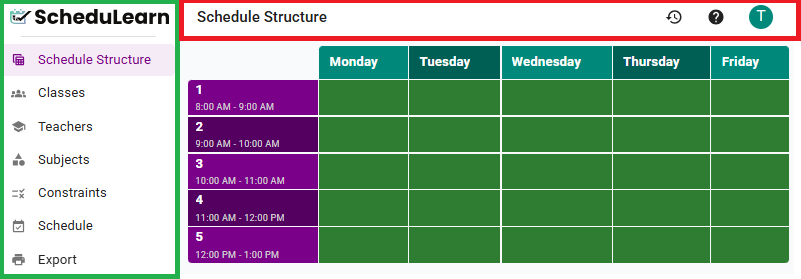 Overview of the ScheduLearn layout.
The main parts of the screen are:
- Toolbar — the bar across the top (outlined in red above). It holds the tools for the page you're on.
- Account menu — the rightmost button on the toolbar. Use it to export or import a copy of your draft (see Backing Up Your Draft), open the Import Wizard, or sign out.
- Version History — the clock icon on the toolbar (see Version History).
- Help — the ? icon on the toolbar. It opens this guide's page for the screen you're on.
- Sidebar — the panel on the left (outlined in green above). Use it to move between pages.
Tip
Collapse the sidebar with the button beside the ScheduLearn logo to get more room.
Resizing Schedule Views
Many pages in ScheduLearn include a schedule or calendar view, such as:
- the Schedule Structure page,
- the Schedule page,
- teacher calendar constraints,
- and other scheduling-related screens.
Click the eye icon in the grid's top-right corner, or View on the Structure page, to adjust the Column Width and Row Height.
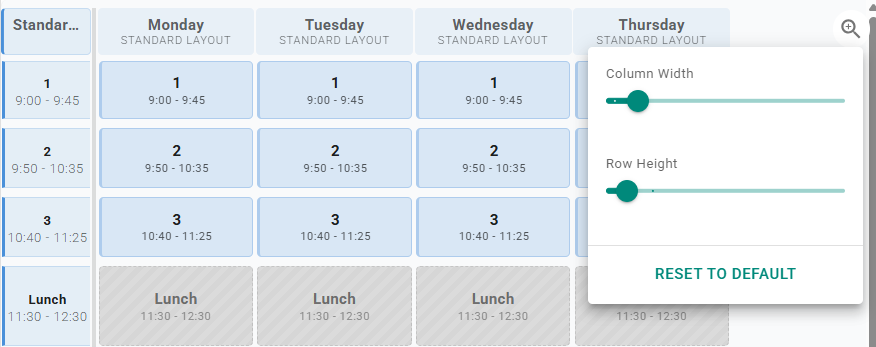 Adjusting the size of a schedule view.
Each slider has a Fill switch. With Fill on, the schedule stretches to fit the space available. Moving a slider turns its Fill off. Reset to Default turns both back on.
Undo & Redo
Made a change you didn't mean to? You can undo and redo your edits anywhere in the editor.
- Undo — press Ctrl+Z (Cmd+Z on Mac), or click the undo arrow in the editor toolbar at the top of the page.
- Redo — press Ctrl+Shift+Z (Cmd+Shift+Z on Mac); Ctrl+Y also works. You can also click the redo arrow next to the undo arrow.
Version History
ScheduLearn saves your work as you go. Each save is a version. Open Version History to name a version, go back to one, or delete one.
 The Version History button (circled in blue).
Click the Version History button on the toolbar, shown above, to open the drawer.
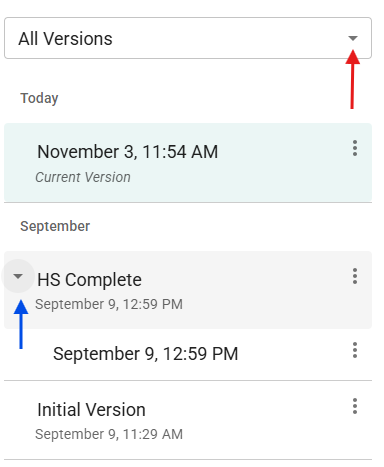 The Version History drawer.
Versions are listed by date. Versions saved less than an hour apart are grouped into one entry; click the arrow beside it (circled in blue above) to see them all. Named, tagged and restored versions each get an entry of their own.
Naming and Saving Versions
Versions are labeled by the time they were saved. To name a version so it's easy to find later, click it to select it, then click its name and type (below). You can also click the ⋮ (three dots) menu and choose Name this version (Rename once it has a name).
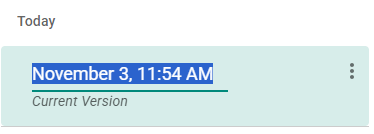 Naming a version.
To find a version quickly, filter the list with the dropdown at the top of the drawer (circled in red above): All Versions, Named Versions or Tagged Versions.
Restoring a Version
To restore a previous version:
- Click the ⋮ (three dots) menu beside the version and choose Restore this version, or double-click the version.
- Click Restore in the Restore this version? dialog.
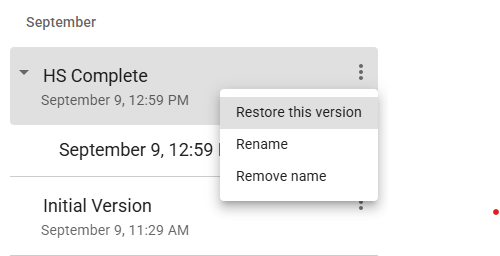 The menu of a named version.
Restoring adds a new version at the top of the list. It's a copy of the version you restored, marked Restored from its name. Your previous work stays in the list.
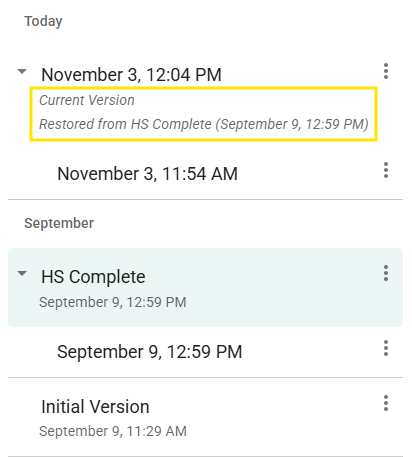 After restoring “HS Complete”, the current version is marked Restored from HS Complete (outlined in red).
The same menu also lets you Remove name from a named version or Delete this version. The current version can't be deleted.
Version Tags
Some versions include automatic tags such as “Schedule Exported,” “Schedule Generated” or “File Imported.” ScheduLearn tags a version whenever you export or generate a schedule, or load a file with Import local version, to help you track key milestones. To remove a tag, click the ✕ on it.
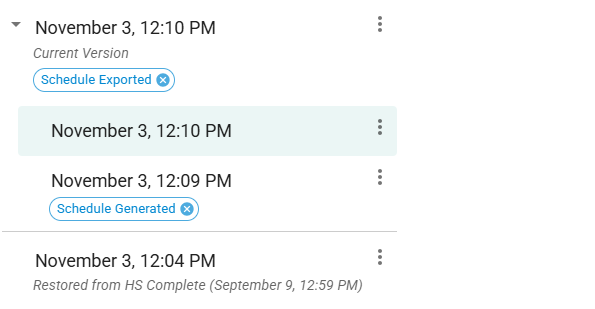 Tagged versions.
Backing Up Your Draft
To keep a copy of your draft outside ScheduLearn, open the account menu and choose Export current draft. To load a saved copy back in, choose Import local version. This is mostly helpful for sharing your exact schedule with ScheduLearn if you run into any bugs or problems using the program.
What's New
After each ScheduLearn update, a window shows what changed (below). Once you close it, it doesn't appear again until the next update.
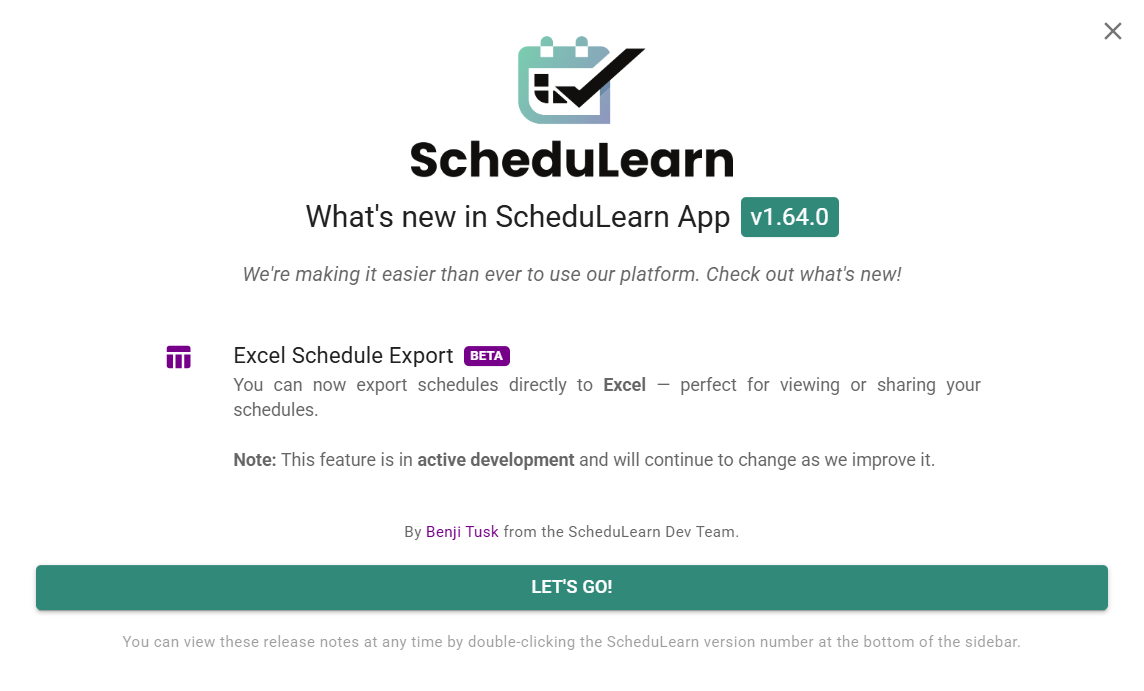 The What's New window.